1
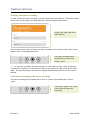
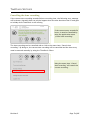
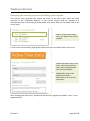
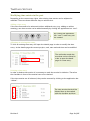
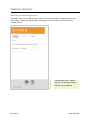
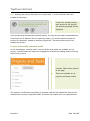
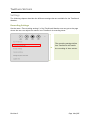
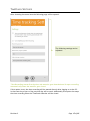
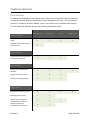
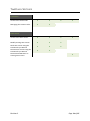
TIMEPUNCH WATCHER Touch friendly In that mode the window won’t be collapsed completely, but stays about 5mm visible at the border of the screen. That’s enough to tap to the window in order to activate it again. Visible If that settings is active, TimePunch stays always visible at the screen. This is always useful, if TimePunch can stay at a second or third monitor on a defined place. Manual If the manual settings has been chosen TimePunch won’t open automatically. In order to open the Window the user has to click to the TimePunch Icon at the system tray. Invisible Using this setting the TimePunch Watcher won’t be shown at all. Only if the TimePunch Watcher gets started twice using the start menu of windows will show the TimePunch Watcher again Hint: This setting only makes sense in combination with the recording setting “Time Recording starts directly when the watcher gets launched and it stops recording automatically when the watcher gets closed.” Because with this setting the TimePunch Watcher will record the daily working time automatically and without showing the TimePunch Watcher to the user. TimePunch Watcher Icon Using that setting it can be defined, if and when the Icon of the TimePunch Watcher will be shown. Show TimePunch Watcher in Task Bar The TimePunch Watcher will be shown with all other opened software in the task bar of Windows. Show TimePunch Watcher in System Tray With that setting the TimePunch Watcher will be shown in the system tray of windows. A click to the icon will open the TimePunch Watcher itself. Don’t show the TimePunch Watcher Icon at all Using that setting the TimePunch Watcher won’t be shown as an icon; neither in the task bar nor in the system tray of windows. Revision 2 Page 21 of 25