1
Page 3
Connecting the Altimeter to the eLogger V4/V3
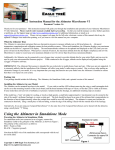
The Altimeter plugs into the “LCD/OSD” or “LCD/TX” port of your eLogger V4 or V3, as shown in Figure 3. If you have a PowerPanel
or other MicroSensors, those can “daisy chain” connect to the pins on the side of your Altimeter, with the polarity as indicated on the
Altimeter label. NOTE: The Standalone Cable must not be used when connected to the eLogger!
Configuring the Altimeter with the Windows Software
If you have not already done so, set up the Recorder software as described in your instruction manual. Then, choose one or more of the
Altimeter options below:
Logging Altitude
To log altitude, just click “Hardware -> Choose Parameters to Log in the Recorder” and check the “Altitude” box.
Displaying Altitude in the Windows Software
To display the Altimeter Gauge and/or Numeric Altitude Display, click “Software, Choose Instruments to Display on the PC Screen” and
check the “Altimeter Gauge,” and/or “Numeric Altitude” boxes.
Graphing Altitude
To graph altitude, click “Data/2D Chart” and select “Altitude” for graphing.
Displaying Altitude on the PowerPanel LCD
Select “Hardware, Configure PowerPanel Display”, and choose “Altitude” for PowerPanel display.
Using the MicroSensor with your own Firmware/Microcontroller
Please see this document for information on using the MicroSensor with your own firmware:
http://www.eagletreesystems.com/support/manuals/microsensor-i2c.pdf
Troubleshooting
Below is a list of problems that may be encountered, and steps to remedy them. If your particular issue is not addressed by the below, see
the Support page on http://eagletreesystems.com or email support@eagletreesystems.com. Include a full description of your problem, your
PC configuration, your Eagle Tree hardware and software versions, and any other relevant information.
Issue: Altitude doesn’t vary in my recordings
Solutions:
• Ensure that the Altimeter is connected correctly to the MicroPower
• Ensure that you are logging altitude, under “Hardware, Choose Parameters to Log in the Recorder”
Issue: Altitude is varying rapidly (more than +/- 1’) when I’m not changing altitude.
Solution:
• Ensure that the Altimeter’s sensing element (the small rectangle next to the LED) is not exposed to direct sunlight. This can be
done by covering the sensor with black electrical tape (except for the LED portion) or mounting the sensor inside the fuselage.
Specifications (Approx)
•
•
•
•
•
•
•
•
Measures altitude up to approx 20,000 Feet (6096 Meters) Above Sea Level
Resolution: approx. +/- 1 foot (0.3 Meters)
Power input (Standalone Mode) : 4V to 16V
Weight: approximately 4 grams (0.15 oz)
Dimensions: approximately 28 mm x 16 mm x 10 mm (1.1” x 0.62” x 0.4”)
Precalibrated – no user calibration required
Advanced Temperature Compensation
Metric or English units
Limited Warranty
Eagle Tree Systems, LLC, warrants the Altimeter to be free from defects in materials and workmanship for a period of one (1)
year from the date of original purchase. This warranty is nontransferable. If your unit requires warranty service during this
Copyright © 2011 Eagle Tree Systems, LLC
http://www.eagletreesystems.com