1
About fingerprints
Getting Good Results
All fingerprints are unique. Even identical twins have unique fingerprints.
We strongly recommend that immediately before enrollment, each person
completely wash and then completely dry his or her hands. It is always important to
have good image quality, but even more so for the enrollment process. Poor image
quality at enrollment will cause poor matching.
All ten fingers on every person are uniquely distinct from each other. If a person
enrolls their index finger, that same finger must be used when clocking in and out.
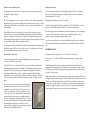
Fingerprints come in three basic types: a whorl, an arch, and a loop. When reading a
finger, the very first thing your fingerprint reader will do is classify the print into one
of these three categories. Most people have a combination of two, or even all three
types. As a trivial exercise, you may be able to classify each of your own fingers into
these three categories just by looking at them.
A supervisor should ensure that the employees touch the sensor the proper way. The
finger should be touched firmly enough to the sensor so that the skin is flattened and
easily read. The center point of the finger should be in the center of the sensor.
The following things should be avoided during enrollment.
·Avoid moving the finger.
·Avoid using an injured finger.
·Avoid using a wet finger. The finger should be towel dried if wet.
·Avoid using a dry or dirty finger.
Setting a Manager Password
Using this criterion as well as several others, through the process of elimination, the
reader can quickly determine which prints cannot match, until it narrows it down to a
single best match.
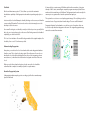
For this process to work properly, it is vital that the central part of the finger
containing this vital feature be placed in the middle of the sensor. Without proper
training, employees may place their fingers too high or too low, making accurate
distinction difficult or impossible. For optimum results, train users to find this
important part of their fingerprint so they will know how to correctly position their
finger on the sensor.
If multiple fingers need to be enrolled for the same person, an additional code can be
associated with that employee (up to 3 unique ID’s) on the timekeeping website. A
different finge
From the enrollment menu, the master manager password can be set. The master
manager password always has access to the fingerprint menu, and never needs
fingerprint verification. The default is 1234. You should change it immediately, and
keep the password secure.
Your payroll company can generate a one-time “unlock” code to reset this password if
it is ever lost. The master manager password always has full access to the enrollment
menu. It is not possible to reduce the master manager password to only “limited”
access.
The manager password is set per-clock. Manager passwords do not automatically
copy from clock to clock.
Setting Manager Fingerprints
From the enrollment menu, you can also set up to four (4) manager fingerprints. This
lets you give employees access to the manager menu.
The employees’ fingerprints must already be enrolled. Further, they can only enter
the fingerprint menu with their fingerprint - NOT with their PIN number.
You can create two kinds of managers. A “limited” manager can only enroll new
employees. A “full” manager has access to all options in the enrollment menu,
including creating and deleting other managers.
Manager privileges are set per-clock. Although fingerprint templates automatically
copy from clock to clock, the manager settings do not copy.