1
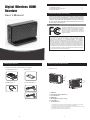
2.Package Contents
4.Receiver
Setup
4 .1 Driver installation
4 .3 Display Mode
1. Insert the provided MD into your computer’s CD drive.
2. Open the MD’s file from “My Computer” . This will open up
to a selection of software to be installed.
3. Double-click the execution file
(setup.exe), screen
will appear.
4. Follow the steps and click "Finish" to complete the
driver installation.
Mode
Icon
Description
Presentation
Presentation prefer
Video
Video prefer
Extension
Extension mode
5. Now, you can link the receiver from your PC.
4 .4 Button Instruction
4 .2 Utilities Operation
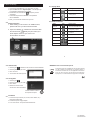
1. When starting to use the PC to TV HDMI receiver,
please make sure your Wi-Fi link is activated.
2. Open the selection of software list and double-click
the execution file
(WiPlay.exe) and select your
Items
Icon
Internet
Connect to AP/Router
Config
Frequency option
About
Program version and
firmware
Minimize
Minimized video
Exit System
On / Off wiplay
Start / Stop
Start / Stop program
Adjust
Adjust screen size
Wi-Fi adapter which one you want to use.
Screen will be as follows:
4
5
4 .5 Internet Shift
1. Choosing icon
Description
WEEE Directive & Product Disposal
, it will take a few seconds to search AP/Router
2. Choosing AP/Router you need
3. Click “Connect”
4. The receiver will restart by itself.
At the end of its serviceable life, this product should
not be treated as household or general waste. It
should be handed over to the applicable collection
point for the recycling of electrical and electronic
equipment, or returned to the supplier for disposal.
4 .6 Config Shift
1. Choosing icon
2. Choosing frequency you need
3. Click “Save”
4. Restart the receiver when
screen show “Save successful”
Channel selection button to
find optional reception.
CH
4 .7 Installation
1. Connect the output device (TV, monitor, home theatre, etc.)
through the HDMI cable.
2. Connect the power supply adapter
3. Turn on the device. The power LED will illuminate.
6
TTD-D5006R
408-000708-00