1
Managing Time Periods for All Companies
Creating Periods: Company - Configuration - Periods Tab
Access To This Feature: Superuser, ServerAdmin
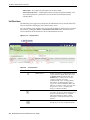
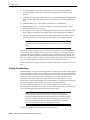
To create the time periods for a data stream manually
1.
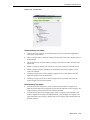
Select Configuration from the VCC menu. The company configuration screen
appears.
2.
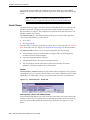
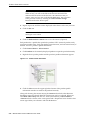
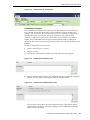
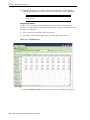
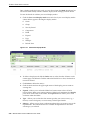
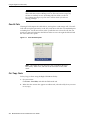
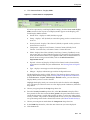
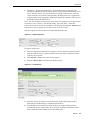
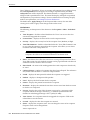
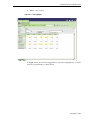
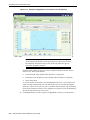
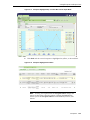
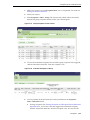
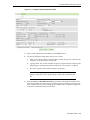
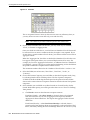
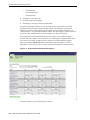
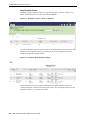
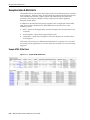
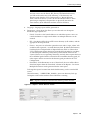
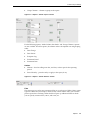
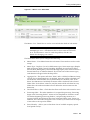
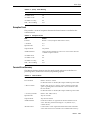
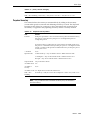
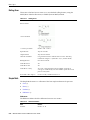
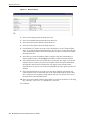
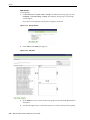
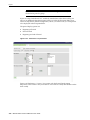
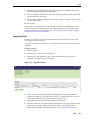
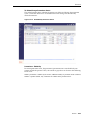
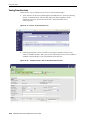
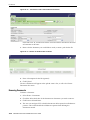
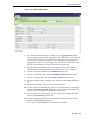
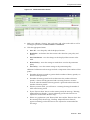
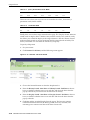
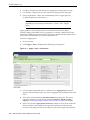
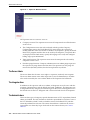
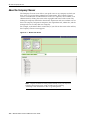
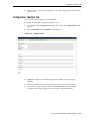
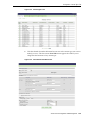
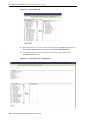
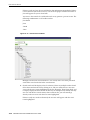
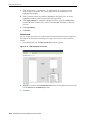
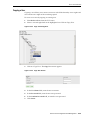
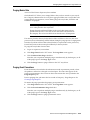
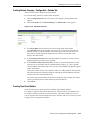
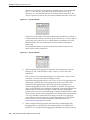
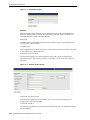
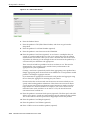
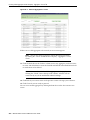
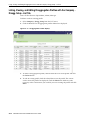
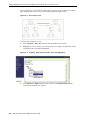
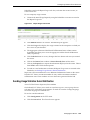
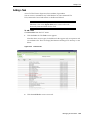
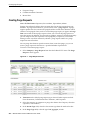
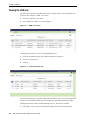
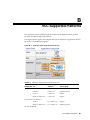
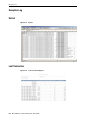
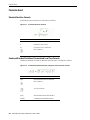
Click the Periods tab. Click Start Editing. The Add Periods screen appears.
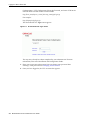
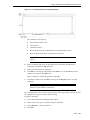
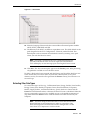
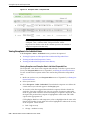
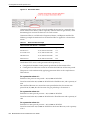
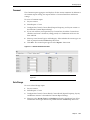
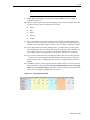
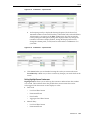
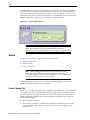
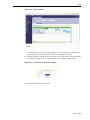
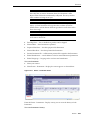
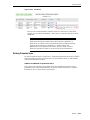
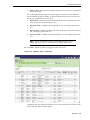
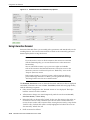
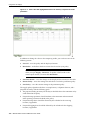
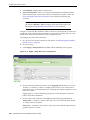
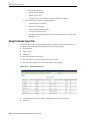
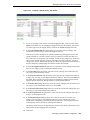
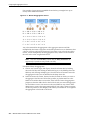
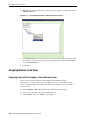
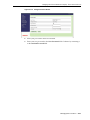
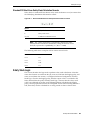
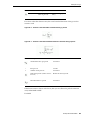
Figure 15–30
Add Periods Screen
3.
In the Start Date field, enter the start date for the periods in the format
yyyy-mm-dd and enter the number of periods you want to create. Note that if
periods already exist in the database, the screen opens with the date of the next
period to be created displayed. If periods have not been created, the screen
displays the date format.
4.
In the Number of Periods field, enter the number of periods you want to create
beginning from the start date you specified.
5.
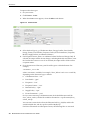
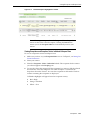
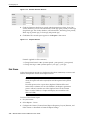
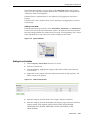
In the Number of Days/Period (number of days in a period) drop-down list, the
superuser or serveradmin with an established time bucket (e.g., 7 days/period)
can add additional buckets of the same size only. Click Create. The periods appear
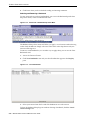
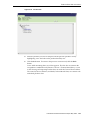
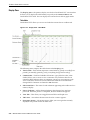
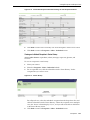
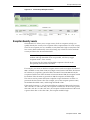
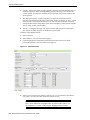
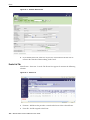
under "All Periods."
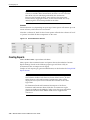
You set the bucket size for a new database when you add periods for the first time.
After that, bucket size cannot be changed. Subsequent period additions will only
be allowed for this selected bucket size.
You cannot create periods prior to the first existing date (for example, you cannot
create a period for January when the first period is February).
6.
Click Create.
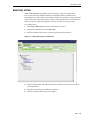
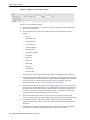
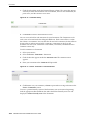
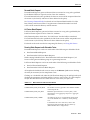
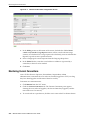
Creating Time Period Folders
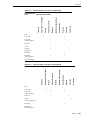
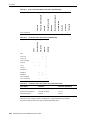
Access To This Feature: Superuser, ServerAdmin, SuperAdmin, Admin
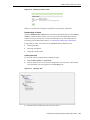
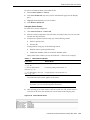
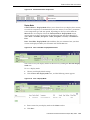
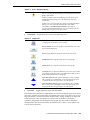
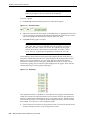
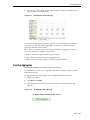
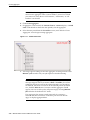
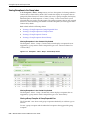
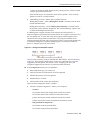
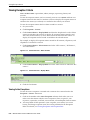
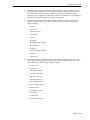
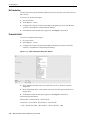
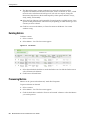
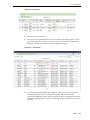
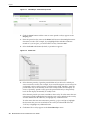
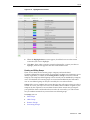
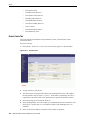
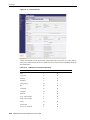
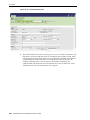
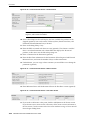
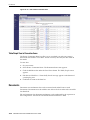
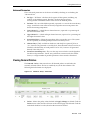
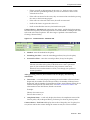
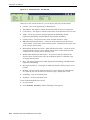
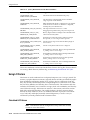
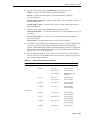
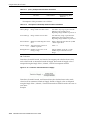
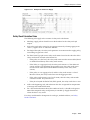
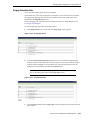
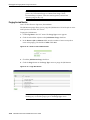
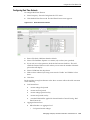
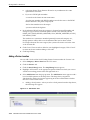
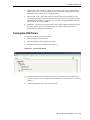
Use folders to organize data stream time periods. Time periods in your database can
be in either weekly increments or daily increments. No matter which type you use,
you can organize the time increments into weeks, months, and years to create a period
category you can expand and collapse.
Server-Level Configuration and Management 15-33