1
Ignition and VE Tables
This section will discuss how to navigate through the various ignition setup windows, and how to manipulate ignition and VE tables. Editing these tables is how you
will tune your EMS, and knowing how to smoothly navigate these tables, understanding keyboard shortcuts is essential to the tuning experience.
Main Table of
Contents
Ignition Settings
Introduction
In order for the MegaSquirt ECU to properly
control your vehicle’s ignition, it is necessary to set
up the ignition parameters much as we did in the
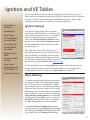
previous section with engine sensors and constants. The Tach Input/Ignition Settings dialog
box is accessed from the Basic Settings option on
the Access Bar. The window that appears is illustrated in Figure 5.1.
Initial Setup
The TunerStudio
User Interface
Using Tune Files
Setting Engine
Constants
Ignition and VE
Tables
Startup and Idle
Settings
Accel Enrich
Datalogging and
VE Analyze Live
Further Resources
Like many other aspects of the MegaSquirt system, ignition setup is very open-ended, and varies
from installation to installation. For this reason, a
configuration walkthrough will not be covered in
the manual, as ignition setup is already extensively Figure 5.1: Ignition Settings
documented in the MegaManual and at MSExtra.com.
The first drop-down menu called Spark Mode contains a multitude of presets for
various popular ignition systems. The remaining fields can be manipulated for a
custom ignition setup if the choice in the Spark Mode box warrants it.
Noise Filtering
A common problem with automotive electronics is
the presence of EMI, or Electromagnetic Interference. This term is known colloquially as “Noise”.
TunerStudio integrates a noise filtering function to
help guard the tach trigger against excessive noise.
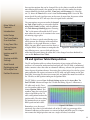
Calibration of this function involves two windows,
shown in Figures 5.2 and 5.3. Figure 5.2 shows the
Noise Filtering Configuration accessed from Basic Setup on the Access Bar. Figure 5.3 shows the
Noise Filter Curve, which is also accessed from
the Basic Setup pulldown on the Access Bar.
In the Noise Filtering Configuration window,
you may choose to turn on Primary Tach (Crank)
noise filtering, Secondary Tach (Cam) noise filtering, or both. Under the Primary Tach heading
Figure 5.2: Noise Filter Config
11