1
The TunerStudio User Interface
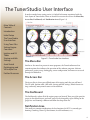
In order to make future tuning easier, it is helpful to become acquainted with the
basic layout of TunerStudio. There are four basic areas on the screen: the Menu Bar,
Access Bar, Dashboard, and Notification Area (Figure 2.1)
Main Table of
Contents
Introduction
Initial Setup
The TunerStudio
User Interface
Using Tune Files
Setting Engine
Constants
Ignition and VE
Tables
Startup and Idle
Settings
Accel Enrich
Datalogging and
VE Analyze Live
Further Resources
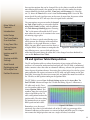
Figure 2.1: TunerStudio User Interface
The Menu Bar
Similar to the menu bar present in most programs, the TunerStudio menu bar
contains options that influence the operation of the software program. Software
preferences, project setup, datalogging, sensor configuration, and more are accessed
through the Menu Bar.
The Access Bar
The Access Bar is where you will find most of the tuning tools that you will need.
The VE table, Ignition table, AFR table, Startup and Idle settings, Knock Sensor settings, and many, many more features are located here.
The Dashboard
The Dashboard is where all of the engine gauges are located. There are eight spots for
gauges in the default layout, and each gauge can be changed by right-clicking on the
gauge face and choosing a different one from the drop-down list.
Notification Area
This small area contains notifications of what functions the ECU is currently performing (Cranking, Warm-Up Enrichment, Accel Enrichment, etc.).
4