1
Chapter 8:
Examining Glide Data
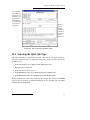
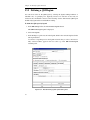
The exercises in this chapter describe how to use the Glide Pose Viewer panel to display
the results of a Glide docking job, and how to write pose files, some of which will be used
in the Liaison section. The emphasis in this chapter is on visual rather than numerical data.
For a more complete discussion of Glide output data, ligand poses, and scoring, see the
online help and the FirstDiscovery User Manual.
8.1
Preparation
Before you start the exercises in this chapter, follow the appropriate instructions in this
section.
If you are continuing from the previous chapter with Maestro running:
If you have done the exercises in the previous chapter and Maestro is still running, you
should already be in the workdir/glide directory. Proceed to “Clearing the Workspace,”
below.
If you are continuing, but with a new Maestro session:
If Maestro is not currently running, open a new shell, move to the workdir/glide subdirectory, and start Maestro according to the instructions in Section 3.2 on page 5.
If you are starting the tutorial with this chapter:
If you have not completed the exercises in Chapter 6 and Chapter 7, but want to work
through the exercises in this chapter, create a working directory and subdirectories as
described in Section 6.1 on page 37. Then, copy the file dock_confgen_pv.mae from
the directory $SCHRODINGER/impact-vversion/tutorial/glide/ to the workdir/
glide directory.
Clearing the Workspace:
If any structures are currently included in the Workspace, remove them by clicking the
Clear workspace toolbar button. (If there are no structures in the Workspace, the Clear
workspace button is not available.) Clearing the Workspace before opening a pose viewer
file is necessary because the structure is read into the Workspace and placed on top of any
currently included structures.
FirstDiscovery 3.0 Quick Start Guide
61