1
5. USING THE WEB INTERFACE
5.3. Modifying Application Settings
The following sections describe how to use the Power Management and Environment menus to control the system input and output
ports, as well as view the status of the EMD.
5.3.1. Setting Control Options
ENGLISH
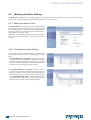
Click Control under Power Management to display the control options for the power.
• Inlet: Specify what action is taken by the iPDU when the inlet
voltage is not within limits. Users can set which power outlets
and digital outputs are to be turned on or off when the inlet
voltage is not acceptable value.
• Power Status of Outlet: Configure the parameters to identify
the outlet, specify its power on/off delay, and output current
threshold. Users can also manually turn the outlet on/off from
this menu page.
• Digital Output Status: This menu page shows the status of
both digital outputs and lets users specify which digital output
is toggled when events occur. Users can also manually change
the status of both digital outputs from this menu page.
5.3.2. Setting up a Schedule
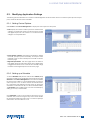
To use the Schedule utility the unit must be set as master (all dip
swiches in the daisy chain configuration must be set to ON). Click
Schedule under Power Management to see a list of schedules
for turning power outlets on or off at a desired time. For instance,
users may want to turn on all the servers and the administrator’s workstation every Monday morning. Users can setvup the
schedule for a certain time of day or it can be scheduled weekly.
The Schedule menu enables users to do this automatically by
setting up an entry in the Schedule.
Click Add New to add a new schedule. Specify the type of
schedule, date, and time using the drop-down menus. Select
the appropriate outlets that users want to control and specify if
users want to turn the outlets on or off.
iPDU - Ref.: IOMPDUXXXX02-GB 00
21