1
Note If you cannot see the text you have written, or it is extremely
small, this may be because the Line width and text size option is set to
Absolute document units, i.e. relative to the size of the original
drawing. For example, text written in a 10 pt. font on an A0 drawing
will be virtually invisible. Click the Markup Preferences button
and
set the Line width and text size to Current display units, then rewrite
the markup. If you wish to delete the original markup, zoom in on the
area till you can see the markup, then select and delete it in the
normal fashion.
Note When the Line width and text size option is set to Current
display units, the resulting markup text size will depend on the amount
of zoom applied to the document when the text is written.
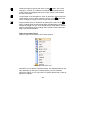
Note Button
The Text function is normally used for short comments. For larger
comments, use the Note tool. Long markup texts can be stored in
"Notes" so they do not cover the work area. To inspect the contents of
a note, select the
button and click the note. Editing text and notes
is described in chapter Markup Dialogs.
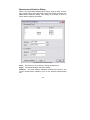
Stamps
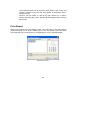
Selecting this button will open a dialog where you can select from a
set of pre-defined stamps that you can use in the same way as you
would use a rubber stamp on a paper drawing/document. You can
include information such as User Signature, date and time in the
stamp.
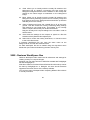
Symbols
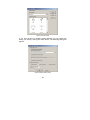
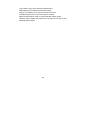
Selecting this button will open a dialog where you can select from a
set of symbols that you insert as comments into a drawing/document.
To insert a symbol from the list either double click the symbol or select
the symbol and click on the Insert button. The symbol will be added to
the center of the workspace window.
49