1
34
RiSCAN PRO
Note:
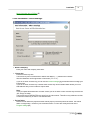
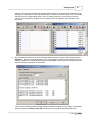
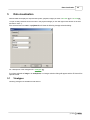
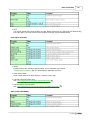
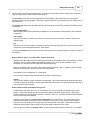
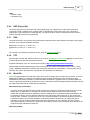
If you have problems while connecting to the instrument, please make sure that you have used the correct
cables. If you use a firewall please make sure that bidirectional communication over the ports displayed on
this page is allowed.
Note:
Please make sure that your PC has a valid IP address. To do so check the TCP/IP settings of the network
connection. If "obtain IP address automatically" is selected it is necessary that a DHCP server is installed in
your network. If no such server is installed (and of course when you connect the instrument directly to the PC
via a cross over cable) you have to set a fixed IP address in the same logical network IP address range as the
instrument (e.g. 192.168.0.233) and a proper subnet mask (e.g. 255.255.255.0).
Please refer to the help file of MS Windows or contact your network administrator.
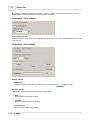
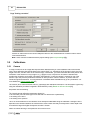
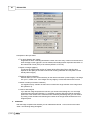
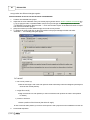
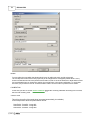
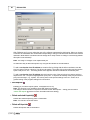
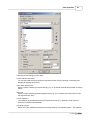
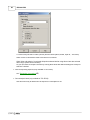
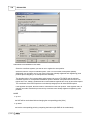
On this sheet you can also set the camera type in case your instrument is equipped with a camera.
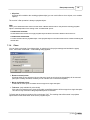
If you notice problems when connecting to your camera directly through RiSCAN PRO, please check the "USBprotocol" setting of the camera. This value must be set to "PTP" for NIKON cameras and to "normal" for
CANON cameras. For changing this setting please refer to the product documentation of your camera.
Select "Connect camera over TCP/IP" if the camera should be accessed via the network by using the camera
server (default value of Port: 20003).
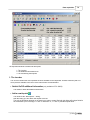
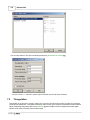
Page "POP"
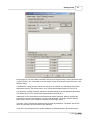
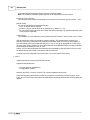
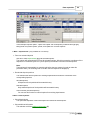
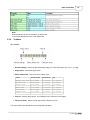
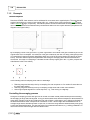
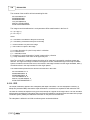
This page displayes the POP matrix (see "Coordinate systems
30
").
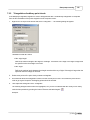
Page "Scaling correction"
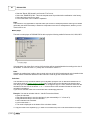
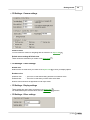
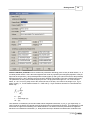
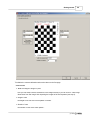
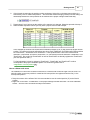
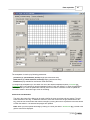
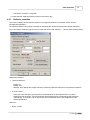
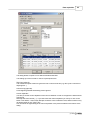
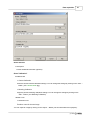
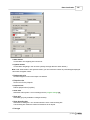
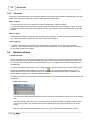
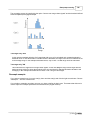
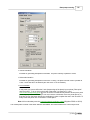
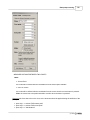
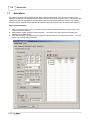
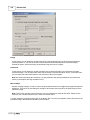
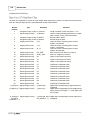
To achieve maximum accuracy for the range measurement, set the atmospheric values to the actual values
during data acquisition. The GEOMETRIC CORRECTION can be entered by the user and is applied to the
measurements (ppm = parts per million).
Note: The values entered here will be the default settings for each new scan position.
(c) 2005