1
Dynamic Views
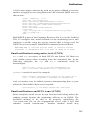
Rem ove selected objects from a container:
Objects that had been saved from the GUI d o not have nod e
nam es associated w ith them in the contain er.xm l file. To rem ove
objects of this typ e, m ove the objects to be d eleted into a corner
of the screen, then “Save Layou t.” Ed it the containers.xm l file
and the d esired objects can be id entified by their X and Y
coord inates.
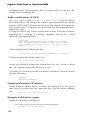
Scaling container icons:
To change the size of the container relativ e to the backgrou nd
grap hic, the size of the backgrou nd grap hic grap hic m u st be
increased . This can be d one in any grap hics ed iting tool su ch as
Microsoft Pictu re Manager. Rep lace the im age files in:
$OV_WWW/ htd ocs/ im ages/ backgrou nd s.
Restart ovas or call the follow ing URL to reload the new im age:
http:/ / <hostnam e>:7510/ topology/ hom e?reload Containers=true
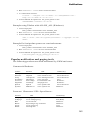
Container View s access control
Container View s access control is only available in N N M V7.53 and
later. By d efau lt, every container is accessible to every u ser. An access
list can inclu d e a list of u sers and / or a list of roles. User -based access
lists p rovid e a w ay to grant access to ind ivid u al u sers. Users w ith the
role of ad m inistrator au tom atically have access to all containers, even
if the container has an access list. An em p ty access control list allow s
only ad m inistrators to access the container.
Users and roles are d efined as a p art of the u ser au thentication p roces s.
Before enabling container access control, enabling u ser au thentication
is requ ired . See p age 235 for m ore inform ation on Dynam ic View s
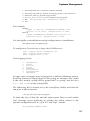
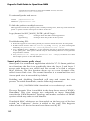
access control. To enable access control for a container, set the
enableAccessControl to “tru e” or “false” in the container d efinition
in the containers.xm l file. Then, ad d an access list sim ilar to the
follow ing exam p le:
<accessList>
<user name="myuser"/>
<role name="myrole"/>
239