1
Introduction:
The Auto Commander is a complete solution for connecting and controlling multiple electrically powered
accessories in the Automotive or similar environments. It is designed to ease the installation, power and
control of multiple devices that require power at up to 30 Amps per circuit with a combined maximum of 100
Amps.
Touch Screen Navigation:
Auto Commander uses a touch screen display as its
primary interface to the user. The touch screen
replaces over 15 separate physical switches and
provides indicator and status information that
can’t be had using conventional wiring techniques.
The touch display uses a very sturdy suction cup
window mount so it can be placed in any location.
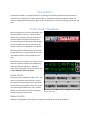
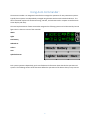
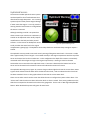
When the vehicle is started the Auto Commander
system comes to life. The first thing the users sees
is the Splash screen as seen in the Figure on the
right.
The startup screen is visible for just a few seconds
Figure 1- Initial Startup Screen
while the computer completes its housekeeping
chores and activates equipment. The Splash
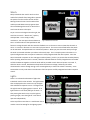
screen is then replaced by the Home screen shown
in Error! Reference source not found..
Home Screen:
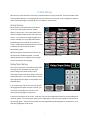
The Home screen is divided into 3 basic areas. The
buttons on the bottom allow the user to control
the various devices attached to Auto Commander,
the top center is the Feedback section that shows
icons indicating what devices are active, and the
buttons on the sides at the top allow navigation
through and control of the system.
Figure 2- Home Screen
Device Control:
The device control buttons at the bottom are explained in detail in the rest of this document.
2