1
Topaz Adjust
User Manual
Workflow
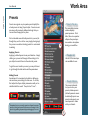
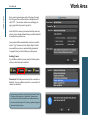
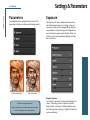
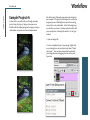
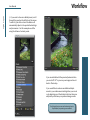
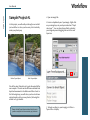
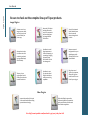
6. Start in the Exposure tab. It is a good idea to begin
here, and then progress to the Details, Color and
Noise tabs in order to see the effects of your adjustments easily.
32
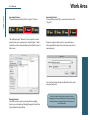
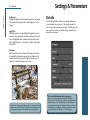
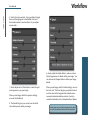
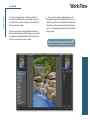
9. Gently adjust the Detail sliders to reduce or intensify the appearance of details within your image. You
can also use the Sharpen slider to define your image
details.
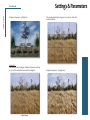
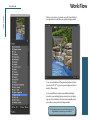
7. Slowly adjust each of the sliders to create the optimal exposure in your your image.
When you are happy with the Exposure settings,
move to the Details tab.
8. The Details tab gives you control over the detail
size and sharpness within your image.
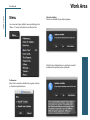
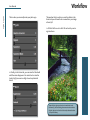
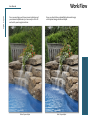
When you are happy with the Detail settings, move to
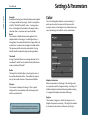
the Color tab. The Color tab gives you optimal control
over the colors in the image and also includes some
convenient saturation and hue controls. Gently increase the Saturation and / or Saturation Boost sliders.
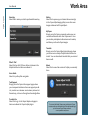
Another great way to reduce the appearance of noise is
to lower the small boost slider under the Details tab.