1
Voice Command
Your Juno System lets you remotely control parameters of your
Juno Tower using a few simple voice commands.
To issue a voice command:
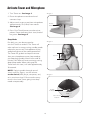
1. Press and hold the One-Touch button on the Pendant Microphone.
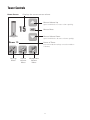
2. Wait for Voice Command tone and Tower LCD background to turn green.
3. Keeping the button pressed, issue one of the commands below.
4. Wait for confirmation tone and Tower LCD background to return to white.
5. Release the button.
For best performance:
• Follow the sequence above precisely when issuing voice command.
• Avoid brushing the microphone against clothing, jewelry, etc. while issuing voice command.
• Speak clearly with a normal conversational tone.
•When issuing the Finish command, wait until the LCD background returns to white before
releasing the button.
•Avoid holding the microphone close to the mouth with speaking a command. The
microphone is optimized to understand commands when it is sitting flat on the chest.
Say:
When you want to:
Increase
Increase the volume by 2 steps
Reduce
Reduce the volume by 2 steps
LCD
Toggle Juno Tower LCD lock on/off
Begin
Begin or resume a suspended recording through
the optional Juno lecture capture application
Suspend
Suspend a recording through the optional Juno
lecture capture application
Finish
top, encode and automatically name a recording
S
based on your personalized settings using the
optional Juno lecture capture application
Commands available with Juno Connect Communications Module installed
Intercom
Make an intercom call request
Power Up
Turn display on
Shut Down
Turn display off
Freeze Screen Freeze/Unfreeze projector image
Blank Screen
Blank/Show projector image
Source One
Switch AV input
Source Two
Switch AV input
Source Three
Switch AV input
Source Four
Switch AV input
Source Five
Switch AV input
19
NOTE: Voice command
works only with the
Pendant (teacher)
Microphone, and only on
either channel A or B.
NOTE: While recording,
voice command tone and
confirmation tones are not
heard so they will not be
recorded.
NOTE: In some cases, if
the Tower does not recognize a command, the LCD
will remain green for up
to 10 seconds. During this
time, audio will not transmit
from the microphones.