1
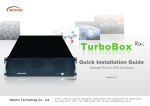
ThunderboltTM PCIe Expansion Enclosure 1. Overview 5. Installation of PCIe Add-on Cards in 1. Power--on indicator LE Based on the most up-to-date ThunderboltTM technology and PCIe architecture, the revolutionary design of TurboBox NA211TB allows different combinations of highP performance PCIe addP on cards to be attached to any ThunderboltTM equipped computer through the blazing fast 10Gbps Thunderbolt interface to meet professionals’ needs for any demanding configuration on work. This quick installation guide will help you set up the ThunderboltTM TurboBox NA211TB. This power-on indicator LED only shows the status of power. When TurboBox is powered on, it shows blue. When TurboBox is powered off, it shows no light. 2. Thunderbolt ports No specific ThunderboltTM port is appointedv when one of the ThunderboltTM ports on NA211TB is connected to host or upstream device, the other port is connected to downstream device. Before proceeding to installation procedure, disconnect the NA211TB from power source for prevention of electric shock or damage to PCIe add-on card. 1. Loosen the thumbscrew and remove the top cover of NA211TB. 3. PCIe expansion 2. Package Checklist 4. Thumbscrew for loosening/tightening the top cover Before installing this unit, verify the package contains the following items. 5. Power cord receptacle 4. PCIe Card Hardware Configuration ThunderboltTM cable C (2 meters) x 1 Step 1 2. Three PCIe slots on rear panel of NA211TB are pre-covered by removable L-shape metal brackets. Loosen the screw of the removable L-shape metal bracket, and the installation of PCIe cards becomes ready. inside B NA211TB Power cord x 1 Green IT makes Green Earth NetStor Technology Co. Ltd. www.netstor.com.tw A TurboBox x 1 D E User manual CD x 1 Carry bag x 1 Step 2 Notify your sales representative if any of the above items is missing or damaged. 3. Panel Layout 4 3 2 1 1 2 3 4 3. Insert PCIe cards into proper PCIe slots of NA211TB and tighten them with screws on brackets of PCIe cards. Slot1 : ThunderboltTM target card (already fixed inside the TurboBox) Slot2 : PCIe x8 slot (open-type;; supports PCIe card x1/x4/x8/x16) Slot3 : PCIe x8 slot (supports PCIe card x1/x4/x8) Slot4 : PCIe x4 slot (supports PCIe card x1/x4) 1 2 5 3 4 Step 3