1
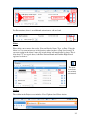
and in the blank body section, click “Paste”.
When your customer receives the email, they will click on the link to view your
presentation in the file type you selected.
Chapter 7: Preferred Suppliers
In ESP Web, you can set up preferred suppliers. Suppliers who are marked as preferred
will appear first in search results.
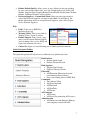
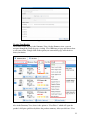
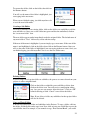
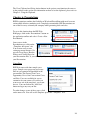
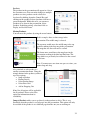
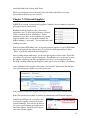
Ranking Preferred Suppliers can be done in the
preferences area. To access the preferences, click on
“Tools” and then click on “Preferences”. In the
Preferences area, there are five rankings of preferred
suppliers which can be set up. In the example, the
highest ranking is “Awesome”. You can name the ranks
anything you want.
Note: For former ESP Online users, if you had preferred suppliers set up in ESP Online,
they can be imported, but only one time. To use the one time importing tool, under
“Tools” click on the “Import Preferred Suppliers”.
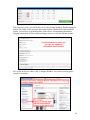
After creating custom rank names, you need to add suppliers to these ranks. To do this,
you will need to get to the supplier detail page. Though there are several ways to access
the supplier detail page, the most straightforward way to is to do a supplier search.
For help searching with using the Supplier search, please refer to Chapter 3: Searching.
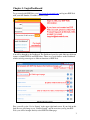
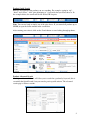
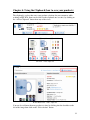
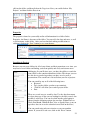
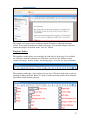
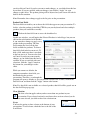
After searching for the supplier, click on the “View Details” button from the summary
view (the same process applies if you are in tile view).
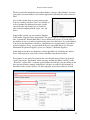
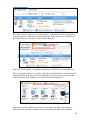
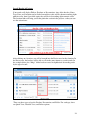
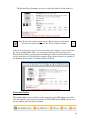
Once you have reached the supplier detail page, click on the Tab for Preferred/Notes.
Note: This tab may be disabled if you have an administrator for Preferred Suppliers.
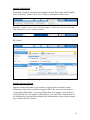
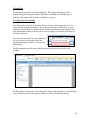
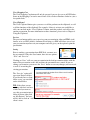
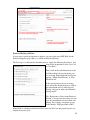
In the Preferred/Notes tab, you will be able
to assign this supplier to any level of your
preferred rankings. You will also be able to
set up any special pricing you might receive
from that supplier. You will also be able to
enter notes for this supplier.
39