1
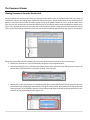
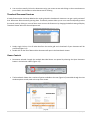
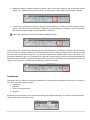
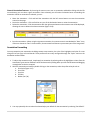
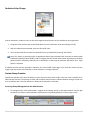
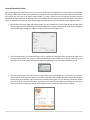
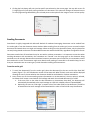
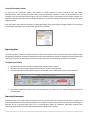
Images with multiple pages are displayed in the Thumbnails window located on the left hand side of the SmartSearch Viewer. Pages can be displayed by selecting the advance or back arrows in the first section (Figure 3.7) of the main ribbon control of the viewer. Moving to pages in larger documents can be accomplished by using the Jump To feature by typing the page number to jump to and the view will bring up that page of the document for viewing. (Fig. 3.7) The orientation of the document being viewed can be controlled using a multitude of features available in the Orientation (Figure 3.8) ribbon control, including: Rotate Left, Rotate Right, Rotate 180 degrees and Panning the document up or down. To Pan the document, select Pan and place the mouse arrow on the document, depress the left mouse button and slide the document either up or down with the mouse. (Fig. 3.8) Scaling the document is managed through the Scaling ribbon with features like: Fit to Page, Fit to Width, Zoom In/ Out and Zoom Select. Zooming In or Out of the document is accomplished by placing the mouse arrow and either hitting the right mouse button to zoom in or the right mouse button to zoom out (Figure 3.9). The Zoom Select feature will allow the user to draw a box around the area on the document they want to zoom in on. The viewer will scale the selected area to the full viewing screen. This feature allows key operators to zero in on the area of a document that contains the index values needed to be used as key field indexes. (Fig. 3.9) The output feature is located in the Output ribbon control (Figure 3.10). Here the documents can be printed using any printer device and available features. The document can be emailed out as an attachment to an MS Outlook message. The Launch feature will launch images that have been saved in the text based application formats such as Word, Excel or Outlook messages into their native applications, where changes can be made and saved back into the SmartSearch database. (Fig. 3.10) SmartSearch Admin User Guide 20 | P a g e