1
Chapter 4 - Using the TV Menu
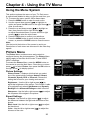
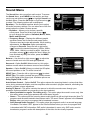
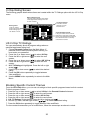
Using the Menu System
7KLVVHFWLRQH[SORUHVWKHPHQXVRI\RXU79(DFKPHQX
is outlined and detailed to help you get the most from your
797RDFFHVVWKHPHQXV\VWHPIROORZWKHVHVWHSV
1. Press the MENU button to open the main menu.
) to highlight an
2. Use the up and down arrows (
option and press the OK button or the right arrow ( ) to
enter its sub-menu.
3. Press the up and down arrows (
) to highlight an
)
LWHPWKHQSUHVVWKHOHIWRUULJKWDUURZV
to adjust the selected items, or press the left or right
arrows (
) to enter the next screen.
4. Press the OKEXWWRQWRFRQ¿UP\RXUVHOHFWLRQV
5. Press the MENU button to return to the previous
screen, or press the CLEAR button to close the menu.
Note:
Use the text at the bottom of the screen to assist you.
Descriptions of each menu are discussed in the order they
appear.
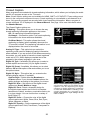
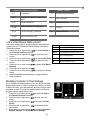
Picture
Picture
Sound
Setup
Parental Control
Language
USB
Exit
Picture Preset
Brightness
Sharpness
Vibrant
100
3
Expert Settings
Advanced Settings
Reset Picture Settings
OK Enter
Select
CLEAR
Back
Picture Menu
The Picture Menu contains menus and controls to
FRQ¿JXUHWKHZD\WKHSLFWXUHDSSHDUV7KHPicture Menu
RSWLRQVDSSO\WRWKHYLGHRIRUWKHPDLQ79DQG9,'(2
INPUT selections.
To access the Picture Menu, press the MENU button on
the remote to open the Main menu. Press the up or down
) to select PictureWKHQSUHVVWKHOK button or
arrow (
the right arrow ( ) to display options.
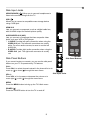
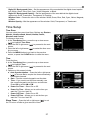
Picture Settings:
Picture
Picture
Sound
Setup
Parental Control
Language
USB
Exit
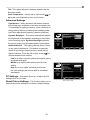
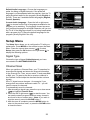
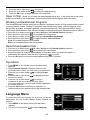
Picture Preset - 'LVSOD\VDOLVWWKDWOHWV\RXVHOHFW
one of the preset picture settings: Natural, Vibrant,
Cinematic, Sports, ECO or Personal. Choose the
setting that is best for your viewing environment.
) to
Brightness - Use the left or right arrows (
adjust the brightness of the picture. This function is able
to be adjusted only when Light Sensor and Dynamic
Backlight in the Advanced Settings are both turned off.
Sharpness - Use the left or right arrows (
the crispness of the edges in the picture.
) to adjust
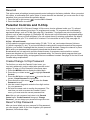
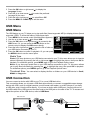
Expert Settings
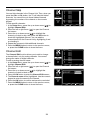
Contrast - Use the left or right arrows (
) to adjust
WKHGLIIHUHQFHEHWZHHQWKHOLJKWDQGGDUNDUHDVRIWKH
picture.
Black Level -Use the left or right arrow (
) to adjust
WKHEODFNOHYHO
Color - Use the left or right arrows (
) to adjust the
richness of the color.
20
Picture Preset
Brightness
Sharpness
Vibrant
100
3
Expert Settings
Advanced Settings
Reset Picture Settings
MENU
Back
Adjust
Select
CLEAR
Exit
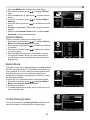
Expert Settings
Picture
Sound
Setup
Parental Control
Language
USB
Exit
Contrast
Black Level
Color
Tint
Color Temperature
MENU
Back
Adjust
35
45
58
0
0
Select
CLEAR
Exit