1
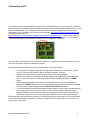
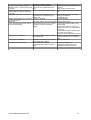
Connection to PC
GRN
FC_ROLL
FC_PITCH
RC_ROLL
RC_PITCH
GND
GND
PWM
BAT
I2C
+5V
TXD
RXI
VCC
FTDI
GND
VCC
SCL
SDA
BLK
DTR
+
GND
GND
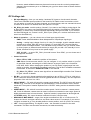
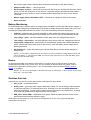
To connect the main controller board equipped with an FTDI interface to a PC you will need a USB-toserial converter and a suitable software driver. For board versions with integrated USB interface you will
need a miniUSB cable. For a USB connection you'll need to install the appropriate software driver.
Depending on your controller, the FTDI chip driver might be http://www.ftdichip.com/Drivers/VCP.htm,
or for the CP2102 chip use
http://www.silabs.com/products/mcu/pages/usbtouartbridgevcpdrivers.aspx. In both cases, after you
install the driver and connecting the board, a new virtual COM port will be created. You will need to
choose this COM port in the SimleBGC software (GUI) to initiate the connection.
BTN
PITCH
ROLL
The GUI starts in the English version of the user interface. To change the interface language, choose
one in the 'language' menu and restart the program.
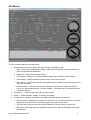
Follow these steps to connect your main controller board to the GUI software:
•
Connect the FTDI adapter cable with the right polarity (Black wire usually is the “ground”
wire), or use mini-USB cable in case of USB port is present on board.
•
Start the GUI, select correct COM-port from the list, and click "Connect".
After the connection is established, all board settings and profiles will be loaded into the
GUI. . You can re-load the current board parameters anytime by clicking the "READ"
button.
•
After adjusting parameters in the GUI you should write them to the controller board by
clicking the "WRITE" button. Only the current profile parameters will be saved to the board.
To return to the default settings push the "RESET TO DEFAULTS" button.
•
To choose a different profile (with different settings) select it from the list of profiles (located
in the upper right corner of the GUI window). You can store different settings as three
different profiles onto the controller board. You can switch profiles saved on the board by
choosing the profile in the GUI or by pressing the MENU button on the controller board.
Remember that some settings are common for all profiles and can not be saved on a per profile basis.
Parameters such as sensor orientation, hardware configuration, RC inputs, and motors outs are the
same across all profiles.
© 2013 Basecamelectronics®
2