1
Model Browser Example (Continued)
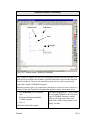
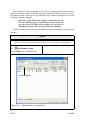
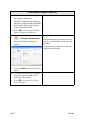
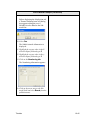
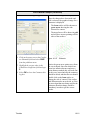
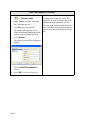
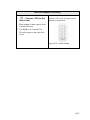
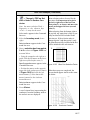
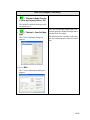
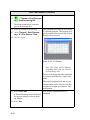
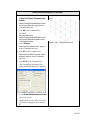
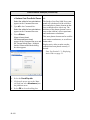
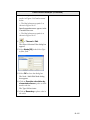
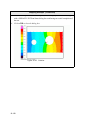
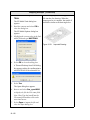
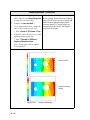
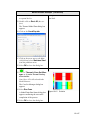
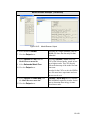
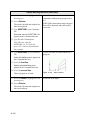
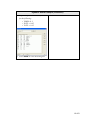
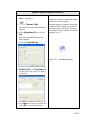
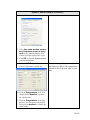
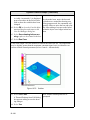
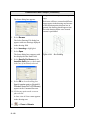
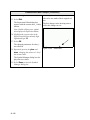
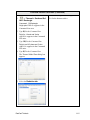
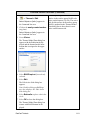
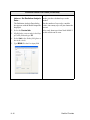
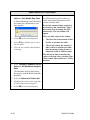
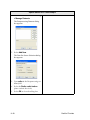
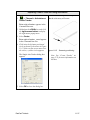
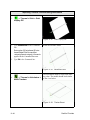
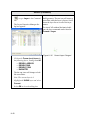
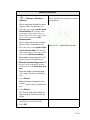
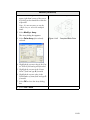
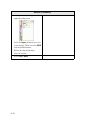
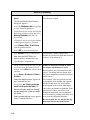
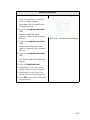
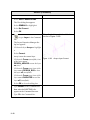
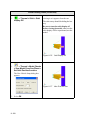
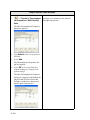
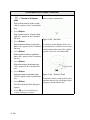
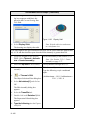
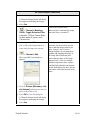
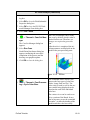
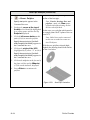
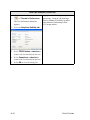
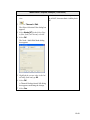
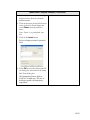
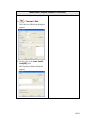
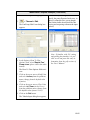
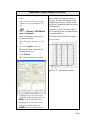
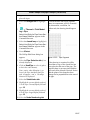
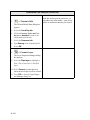
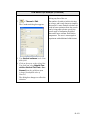
13. Select Options > Heat Map in the
Model Browser.
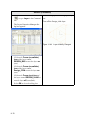
14. Select submodel CCCC.
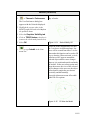
15. View the Output area.
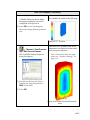
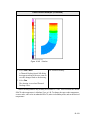
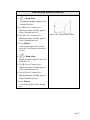
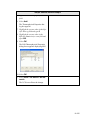
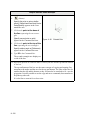
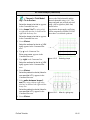
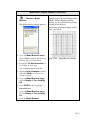
The heat map shows the energy summary
for energy into and out of the selected
nodes. Energy between the selected nodes
is not in the tabulation.
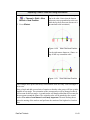
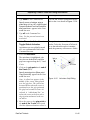
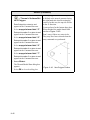
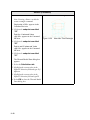
If submodel CCCC is selected, the heat
map implies a load of 3W and has 3W
leaving into submodel BBBB.
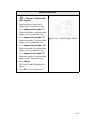
If submodels BBBB and CCCC are
selected the heat map output will show
the energy going from submodel BBBB
into submodel AAAA, along with the 3W
heat source on submodel CCCC.
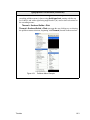
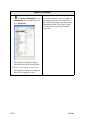
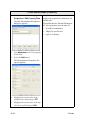
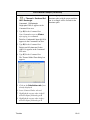
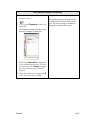
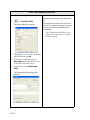
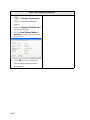
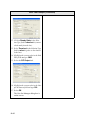
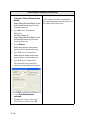
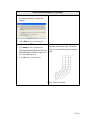
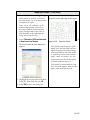
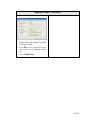
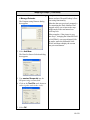
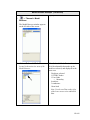
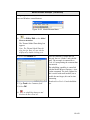
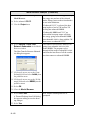
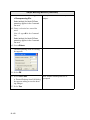
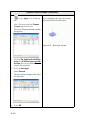
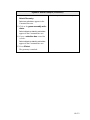
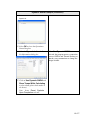
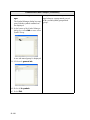
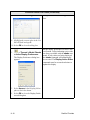
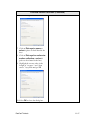
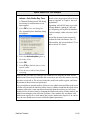
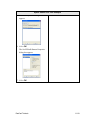
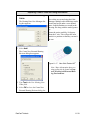
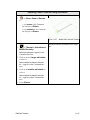
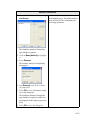
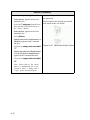
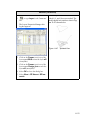
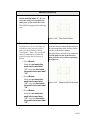
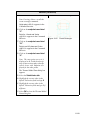
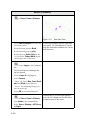
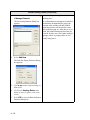
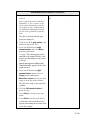
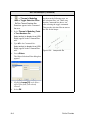
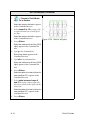
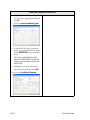
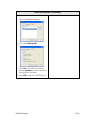
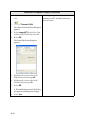
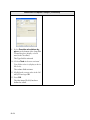
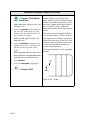
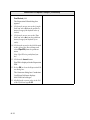
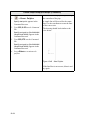
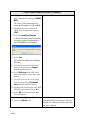
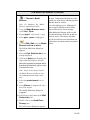
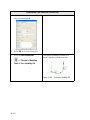
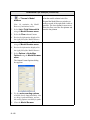
16. Select Options > Heat Flow
Between Submodels in the Model
Browser window.
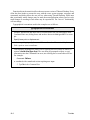
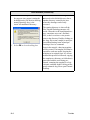
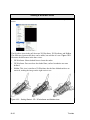
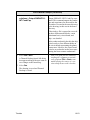
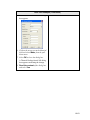
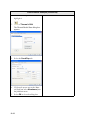
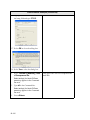
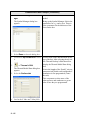
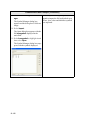
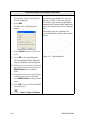
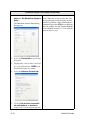
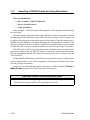
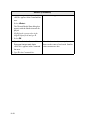
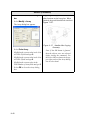
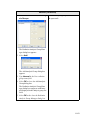
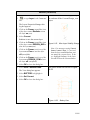
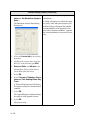
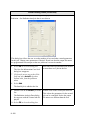
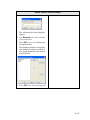
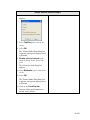
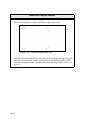
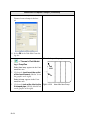
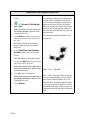
The Heat Transfer Between Submodels dialog box appears.
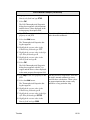
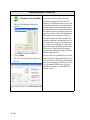
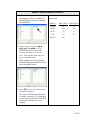
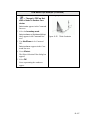
The results of the heat flow analysis 3W
going from submodel AAAA to submodel BBBB. The program cycles
through all the nodes in submodel AAAA
and sums the heat flows of all the conductors that connect to submodel BBBB.
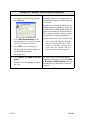
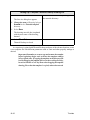
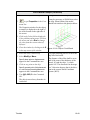
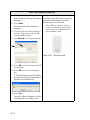
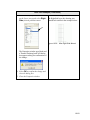
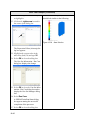
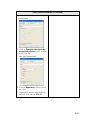
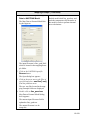
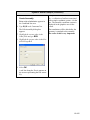
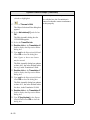
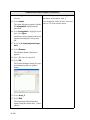
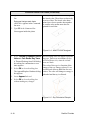
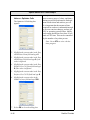
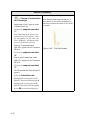
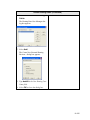
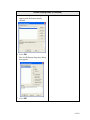
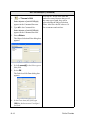
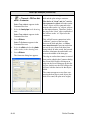
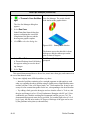
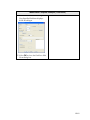
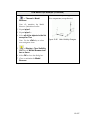
17. Click on the arrow next to the From
Submodel field and select AAAA from
the pulldown menu.
18. Click on the arrow next to the To Submodel field and select BBBB from the
pulldown menu.
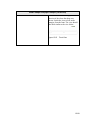
19. Select OK.
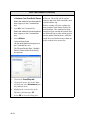
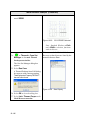
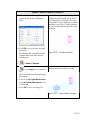
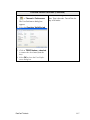
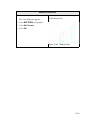
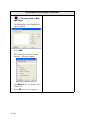
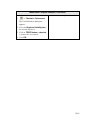
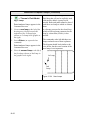
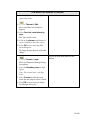
20. Close the Model Browser.
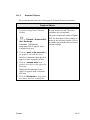
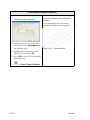
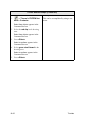
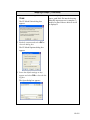
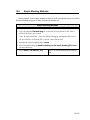
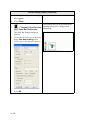
21. Select File > Exit.
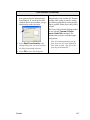
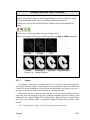
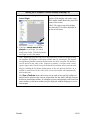
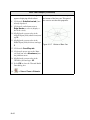
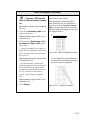
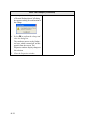
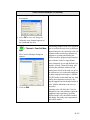
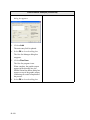
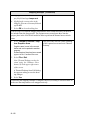
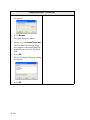
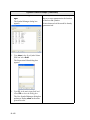
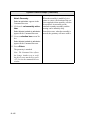
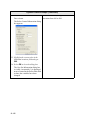
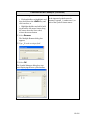
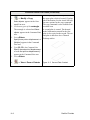
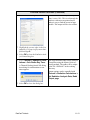
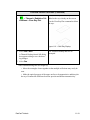
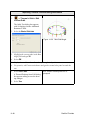
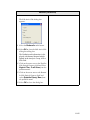
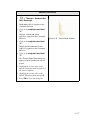
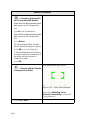
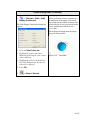
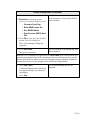
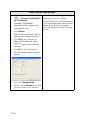
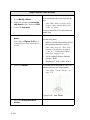
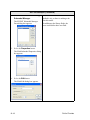
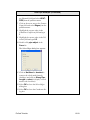
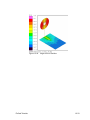
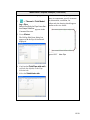
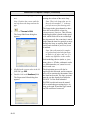
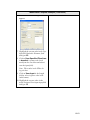
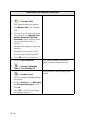
A Thermal Desktop/AutoCAD dialog
box appears asking to save the drawing changes.
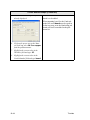
22. Select Yes.
10-150
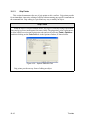
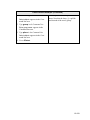
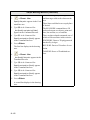
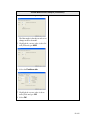
Exit Thermal Desktop and save as
prompted.