1
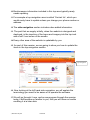
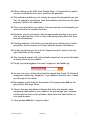
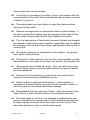
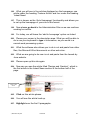
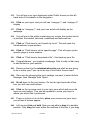
To the left of that is an area for you to enter in the vertical and
horizontal spacing - this refers to the distance between the words and
the top and the side of the image. We recommend you use 5 for
horizontal and 5 for vertical. The measurement is pixels, which is very
small.
237.
238.
Click on the ‘OK’ button.
239.
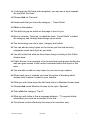
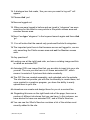
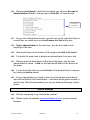
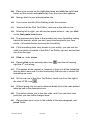
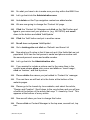
Now highlight over some text, and from the top row of the Rich
Text Editor, select Bold, Italic and Underline
Please note it is important to click on the centre of each of the icons
in order to activate them.
240.
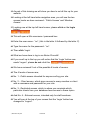
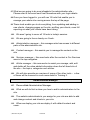
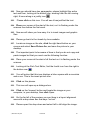
Next to the Underline icon is a colour chooser, so we can easily
change the colour of our text. Please select a colour from the
241.
palette
242.
.
We can also change the size of the text, click the drop down box
and select Large.
You can easily insert hyperlinks, and links to download different
types of files.
243.
244.
We are now going to add a link to your article.
Please scroll down to the very bottom of your text and type in “click
here to visit Jewels by June”.
245.
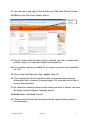
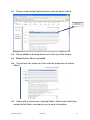
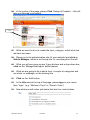
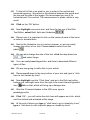
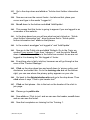
Now highlight over the “Click Here” and go to the Rich text editor
bottom row, and eight icons from the right is an insert internal hyperlink
click on that, which will bring up a dialogue box.
icon
246.
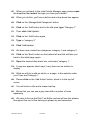
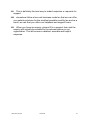
After the 2 forward slashes in the URL area, type in
jewelsbyjune.biz
247.
Click ‘OK’ – you will notice the click here will appear as a link, which
can’t be clicked and activated at this stage.
248.
At the end of where you type in “click here to go to Jewels by June”,
type in “click here to visit a specific page on Jewels by June”.
249.
©
eknowhow Pty Ltd
LU101008
21