1
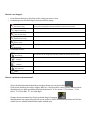
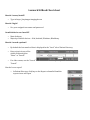
How do I see images? o From Patient Directory click/tap on the study you want to view o On desktops use click and drag to interact with the image Left button drag Perform the currently selected interaction mode. The default mode is Zoom, and can be changed by selecting an different one from the toolbar Windowing Right button drag Pan Both buttons drag Fast scroll Middle button drag Advance through the images at full quality Wheel scroll Right click: Displays the context menu o On mobile devices Touch drag Will perform the currently selected interaction mode. The default mode is Scroll, and can be changed by selecting a different mode from the toolbar Pinch zoom and pan 2 fingers Windowing 3 fingers Context menu Tap and hold Shake Reset How do I perform a measurement? -‐ -‐ -‐ Select the desired measurement from the drop-‐down tool on the toolbar Click/touch and drag for rulers, ellipses, ROIs etc., click/touch for cursor (point) measurement Alternatively use these predefined keyboard shortcuts: “a” for Arrow, “c” for Cursor , “r” for Ruler, “f” for Free ROI , “b” for Cobb angle. -‐ -‐ Change the measurement by click/touch and drag its hotspots. Measurements are temporary and will not be saved on PACS. Measurements done on PACS are visible but not editable and marked with a dashed style