1
NVPCUG
SPECIAL INTEREST GROUPS
& MAC GROUP
In SIG meetings you can learn about
a subject in greater detail than is
feasible at NVPCUG general meetings.
SIG meetings are open to everyone.
Meeting times and locations
occasionally change, so for current
meeting information, see our Web
site, www.nvpcug.org, or contact
the SIG leaders.
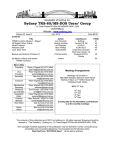
Investors SIG
Meets: Monthly, second Monday
5:30 to 7:30 p.m
Jerry Brown’s home,
23 Skipping Rock Way, Napa
Leader: Jerry Brown
(707) 254-9607
bqandjbb
@sbcglobal.net
Napa Valley Mac User Group
Meets: Monthly, second Thursday
6:30 - 8:30 p.m.
Napa Senior Activity Center
1500 Jefferson St., Napa
Leader: Ron Rogers
(707) 226-5352
ronrogersnapamug
@gmail.com
Sonoma Computer Group
Meets: Monthly, fourth Saturday,
except Mar 2011
10:00 - 11:30 a.m..
DeLong room
Sonoma Library, Sonoma, CA
Leader: Beth Pickering
bethpick@emailx.net
Requirements For Web Radio
You will need a player, a software application capable of playing back
Internet radio streams. Popular players include Microsoft Windows
Media Player 9, Real-Networks RealPlayer10, Apple iTunes, and many
MP3 music players. We will focus on using Windows Media Player 9.
You’ll also need an Internet connection. A dial-up connection is sufficient
for reproducing audio with AM radio quality. Many Internet radio stations
offer streams designed for dial-up users. If you have a broadband
connection, you have a wider choice of playback quality. Some radio
stations offer near CD-quality streams, although often only as part of an
added cost subscription package. Depending on the format, even lower bit
rate broadcasts can sound remarkably good. With a broadband connection,
you have your choice of any of the available stream bit rates. Finally, your
computer system needs a way to play the streams. This can be as simple
as a sound card and desktop speakers or headphones or as complicated
as using a high-quality sound card to connect to your stereo system.
Overheating: What To Watch For
Any component inside your computer can overheat under the right
circumstances, but due to their nature, there are several pieces of
hardware that are at high risk for heat damage. At the top of the list is
the computer’s CPU. Whenever you launch a program on your computer
or use an application that’s already running, the CPU must work a little
harder to keep up. Eventually, the CPU is forced to operate at the peak
of its abilities, and that’s when it consumes the most electricity and
generates the most heat. When the CPU overheats, programs that
typically run fine may generate error messages, or the entire computer
may crash. Some CPUs are designed to reduce their speed when they
overheat, so if you experience severe slowdowns in programs after a
certain amount of time has passed, heat is the likely culprit. Video cards
are the second most likely type of hardware to overheat, especially if you
use the computer to play graphics-intensive 3D games. Most video cards
contain their own memory and CPU, and when the memory overheats,
it tends to cause white “sparkles” to appear randomly on-screen, whereas heat problems resulting from the card’s CPU generally cause the
game to slow down or crash.
When To Update Drivers
Some driver Web sites recommend that you update your drivers regularly.
Newer drivers often expand functionality, so updating your drivers has a
benefit. However, the old saying, “If it ain’t broke, don’t fix it,” applies to
computing.A new driver can cause problems with a functional configuration
as easily as an older driver can. Conventional wisdom says the following:
1. If a device quits working or crashes your PC even though you have
changed nothing, reinstall the existing driver. 2. If you are installing an older
device on a new system, or if you have made changes to your system and
a device is acting up, look for an updated driver. 3. If your device has never
worked well or at all with the default driver (especially if the device and
PC are of different vintage), experiment with old and new drivers to find
the best one.
Reprinted
with
permission
from
Smart
Computing.
Visit
www.SmartComputing.com/Groups to learn what Smart Computing can do
for you and your user group!
NVPCUG Computer News, May 2011, Page 2