1
Showing System Topology, Sample Counts and Rates
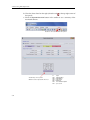
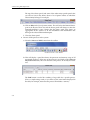
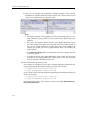
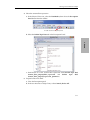
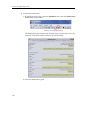
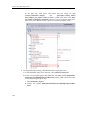
c. Click on the Total CPU column heading. This will sort the table by the values
in this column. Clicking it again will sort in the opposite order. This is useful
to watch in real time to see which processes are using a lot of CPU. You can
sort based on any of the columns.
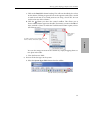
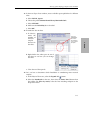
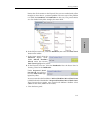
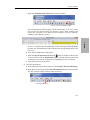
d. Click the
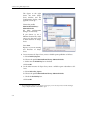
button just above the vertical scrollbar. This allows you to
choose which columns appear in the table. For instance, to remove the ID column, uncheck it. (Note: to enable the ‘Pack Selected Column’ option, select a
cell in the top row.)
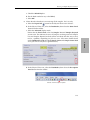
Click here to
see these
options
To resize columns (such as this one) to fit
their contents, select this option:
3. Demo
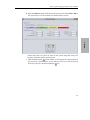
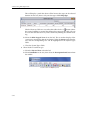
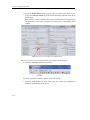
You can also change the order of the columns by simply dragging them to a
new place in the table.
e. Close the Processes Table.
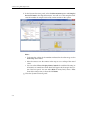
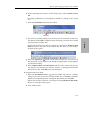
8. Review all the data types in the system:
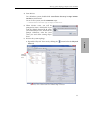
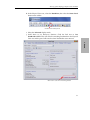
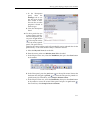
a. Select the System Types Table button from the toolbar.
Create a new System Types Table
3-9