1
PART 4 – INSTRUMENT PROGRAMMING
GENERAL
The DFX is configured through the keypad interface. All entries are saved in non-volatile FLASH memory
and will be retained indefinitely in the event of power loss.
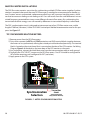
KEYPAD OPERATION
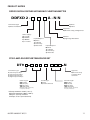
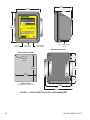
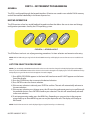
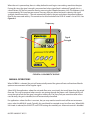
The DFX contains a four-key tactile feedback keypad interface that allows the user to view and change
configuration parameters used by the DFX operating system.
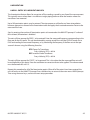
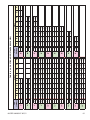
FIGURE 4.1 - KEYPAD LAYOUT
The DFX allows two basic sets of programming procedures: list item selection and numeric value entry.
NOTE: While in RUN mode, pressing both the UP and DOWN arrow keys will display the current firmware version installed in the
meter.
LIST ITEM SELECTION PROCEDURE
NOTE: If you are already in PROGRAM mode and the selection to be viewed or changed is already displayed, proceed to step 3
below. If you are in PROGRAM mode and the selection to be viewed or changed is not displayed, press the UP or DOWN arrow keys
and repeat pressing until the desired selection appears. Proceed to step 3.
1) Press MENU. PROGRAM appears in the lower left-hand corner and ID UNITS appears on the lower
line of the display.
2) Press the DOWN arrow key to move to the desired selection.
3) Press ENTER to view the current selection.
4) If the current selection is desired, press ENTER to confirm. The unit will automatically advance to
the next selection.
5) If the current selection must change, press the UP arrow key and repeat pressing to scroll through
the available choices. Press ENTER to confirm your selection. The unit will automatically advance
to the next selection.
6) To exit programming mode, press the MENU key. Depending on your position in the programming mode, up to three MENU key presses may be required to exit. The display will change to
RUN mode.
NOTE: The DFX firmware revision can be displayed by pressing both arrow keys simultaneously.
06-DPP-UM-00147 02/12
37