1
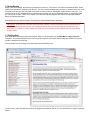
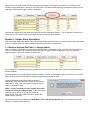
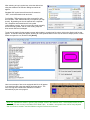
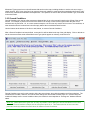
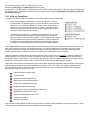
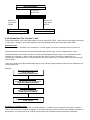
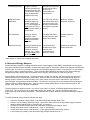
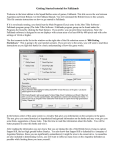
The “Unit Composition Panel” displays the weapons systems
currently assigned to the parent unit/formation HQ (shown with “tank”
icons in the tree view). The left column is the quantity of the system
to assign, and the right column is the system model name.
To edit the values of an existing weapons system, click on either the
quantity or name grid cell, as appropriate. When setting quantities for
formations, keep in mind that this panel is concerned ONLY with the
formation HQ – not all of the systems that may be included in subformations. They are accounted for on their own.
Weapons systems may be designated in two ways:
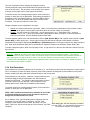
Specific: the exact model number is specified. When a user selects the unit/formation in the scenario creation
process, he will get the exact equipment specified (which he can then modify, if so desired).
Generic: The exact model is not specified – only the general type is (e.g., “Main Battle Tank”, “Armored
Personnel Carrier”, etc.). When a user selects the unit/formation to add to a scenario, he will be prompted to
select the exact model from the Weapons System Data Table.
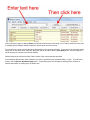
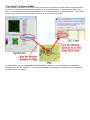
To add a weapons system to the unit formation/HQ, click the [Add Specific WS] to add a specific system model, or [Add
Generic WS] to add a generic type. Generic types may also be specified as required to have Marine or Airborne
qualifications by clicking the appropriate [OK/Marine] or [OK/Airborne] button on the type selection form when saving the
pick. Note: these qualification types are set individually for equipment models in the Weapons System Data Table.
To delete a weapons system, either set its quantity to zero, or right click on it in the tree view and select “Delete” from the
pop-up menu.
Quick Tip: “Generic” should be used as the default choice when adding new weapons systems. This makes it
convenient for the scenario creator to select the model he wants to use for the situation being modeled, and also to
easily equip groups of units in the force with it. The only time “Specific” should be chosen is when the unit or
Formation HQ could NEVER be equipped with anything besides a specific model, for example a “HAWK-G Platoon”
would always have HAWK-G missiles.
3.3.4 Sub-Formations
Sub-formations are previously defined units or formations (i.e., not weapons systems) that are assigned to a higher parent
HQ. For example, to create an infantry company, three infantry platoons are assigned as sub-formations to the parent
infantry company HQ (along with other perhaps formations and units as well).
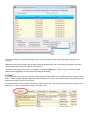
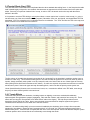
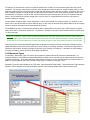
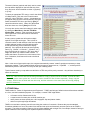
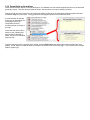
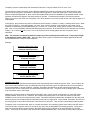
Sub-formations are not required. However, if a parent does has subformations assigned, they are displayed in the “Sub-formations
Assigned to Unit Panel”. The quantity of the sub-formation is shown
on the left, and the name on the right. Only formations or units
already defined in the TO&E can be added as sub-formations.
To edit the values of an existing weapons system, click on either the
quantity or name grid cell, as appropriate.
NOTE: When a defined formation/unit is deleted from the TO&E,
it will automatically be removed from all instances where it is
assigned as a sub-formation to a parent.
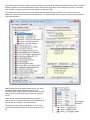
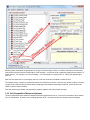
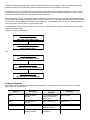
So, for instance, if the panel illustration above represents the subformations of a “US Tank Heavy Task Force”, and the “Tank
Company” is later deleted from the TO&E, the parent “US Tank
After deleting the “US Tank Company” formation
Heavy Task Force” will be left with just the “Recon Platoon” and “Rifle from the TO&E – it is automatically removed as a
Company”.
sub-formation wherever it is assigned.