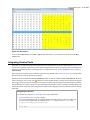
1
Oxygen XML Editor | Authoring Customization Guide | 596
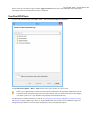
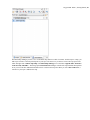
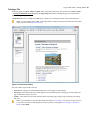
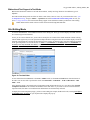
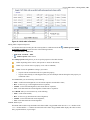
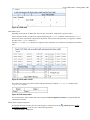
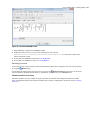
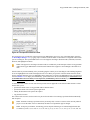
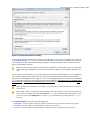
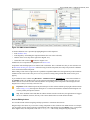
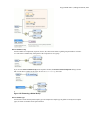
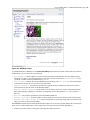
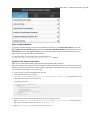
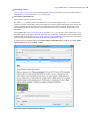
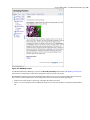
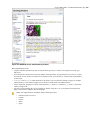
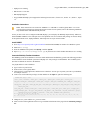
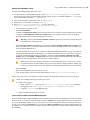
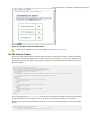
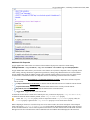
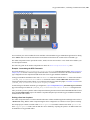
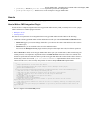
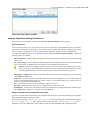
action from the contextual menu of a document, you can easily open it in the Author Component applet that is embedded
in your SharePoint Documents page.
You can embed the applet either on a site that is located on a standalone SharePoint server, or on your company's
Microsoft Office 365 account.
This example can be used as a starting point for other CMS integrations.
Integration Adjustments
Deploying Resources
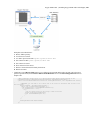
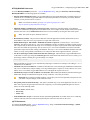
You are able to embed the Author component in a SharePoint site as a Java Applet, using the new Applet with JNLP
Java technology. Sign with a valid certificate the JNLP file and the associated JAR files that the applet needs.
Deploy these resources on a third party server (other than the SharePoint server). The Java applet downloads the resources
as needed. If you deploy the JNLP and JAR files on the SharePoint server, the Java Runtime Environment will not be
able to access the applet resources because it is not aware of the current authentication tokens from your browser. This
causes the Java Class Loader to fail loading classes, making the applet unable to start.
Accessing Documents
One of the main challenges when integrating the Author Component applet in your SharePoint site is to avoid
authenticating twice when opening a document resource stored in your SharePoint repository.
You have already signed in when you started the SharePoint session, but the applet is not aware of your current session.
In this case every time the applet is accessing a document it will ask you to input your credentials again.
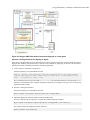
As a possible solution, do not execute HTTP requests directly from the Java code, but forward them to the web browser
that hosts the applet, because it is aware of the current user session (authentication cookies).
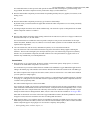
To open documents stored on your SharePoint repository, register your own protocol handler to the JVM. We implemented
a handler for both http and https protocols that forwards the HTTP requests to a JavaScript XMLHttpRequest object.
This way, the browser that executes the JavaScript code is responsible for handling the authentication to the SharePoint
site.
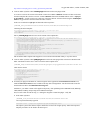
To install this handler, add the following line to your Java Applet code (in our case, in the
ro.sync.ecss.samples.AuthorComponentSampleApplet class):
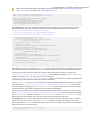
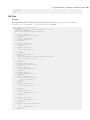
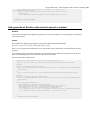
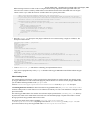
URL.setURLStreamHandlerFactory(new ro.sync.net.protocol.http.handlers.CustomURLStreamHandlerFactory(this));
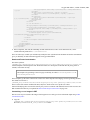
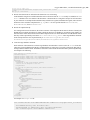
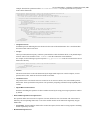
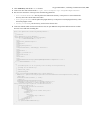
To enable JavaScript calls from your Java applet code, set the MAYSCRIPT attribute to true in the <applet> element
embedded in you HTML page:
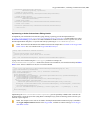
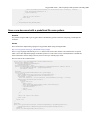
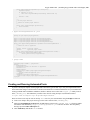
<applet width="100%" height="600"
code="ro.sync.ecss.samples.AuthorComponentSampleApplet"
name="authorComponentAppletName" id="authorComponentApplet"
MAYSCRIPT="true">
.....
</applet>
Tip: In case the applet is not working, or you cannot open documents from your SharePoint repository, enable
the debugging tools that come bundled with your Web Browser or the Java Console from your operating system
to try to identify the cause of the problem.
Getting Started
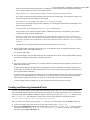
To integrate the Author Component as a Java applet with your SharePoint site, you need the author component start-up
project.
The project is available as a Maven archetype online. More information about the setup can be found here.
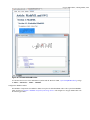
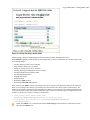
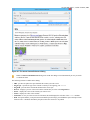
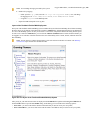
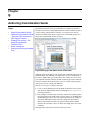
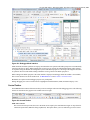
An online demo applet is deployed at
http://www.oxygenxml.com/demo/AuthorDemoApplet/author-component-dita-requirements.html.