1
 10
Reports
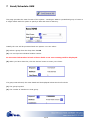
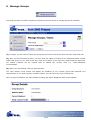
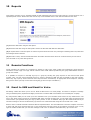
This feature will allow you to download details of SMS messages sent from all groups under the current account over a
specified period of time. Please note that records may not be available until 1 hour after the SMS has been sent.
(1) Select the Start date using the date picker.
(2) Select the End date using the date picker. Ensure the End date falls after the Start date.
(3) If required there is also the option to enter a keyword which will return only messages containing this word, otherwise
all messages will be returned.
(4) Once this is done, click the Download button. All results returned will be saved as a CSV file which you can save to
your hard disk or any other storage device.
11
Remote Functions
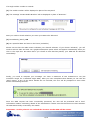
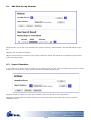
Group members can respond to a message by sending a reply to the main number and including the group keyword
somewhere in their reply. The reply will be received at the email address specified by the group administrator when the
group was created.
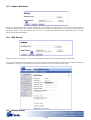
It is possible for anyone to manually sign up to a group by sending the group keyword to the main account phone
number. They can also remove themselves from a group by sending an SMS with the word STOP to the main number.
When they sign up they will be informed when they have been successful by an appropriate “Auto Response” message
being sent to them (will only receive this when signing up and not upon cancellation.)
12
Email to SMS and Email to Voice
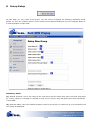
Purchasing credits also allows you to use our Email to SMS service. For most people, it’s easier to compose a message
using a standard qwerty keyboard and highly convenient to conduct SMS conversations from a desktop PC or laptop.
By using Email to SMS you can send up to 160 characters from your favourite email account to any mobile device. The
text in the email will be received as a standard SMS within seconds of being sent. To use simply send an email from the
email account you specified during the sign up alert process. In the ‘To Address’ field, type the mobile number that you
want the message to be sent to followed by ‘@x-onsms.com’. Each Email sent using this service will cost 1 credit.
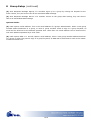
Email to Voice is almost identical to Email to SMS as explained above. The main difference is that the recipient will receive
a phone call and when answered the text in your email will be read out to them in an imitation of a human voice. To use,
type the mobile number that you want the message to call in the ‘To Address’ field followed by ‘@x-onvoice.com.’
18/18