1
Configuring a Virtual Network
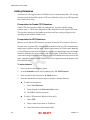
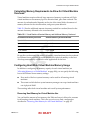
The presence of virtual network adapters has a slight performance cost, because broadcast packets must go to the extra adapters. On Windows networks, browsing your network might be slower than usual. And in some cases, these adapters interact with the host computer’s networking configuration in undesirable ways. If you are not using a virtual network adapter, you can remove or disable it. DHCP Tab
You need to configure the virtual DHCP server if you want to assign IP addresses to each virtual machine and the host on the private network (that is, if you want to use host‐only or NAT networking). Using DHCP to assign IP addresses is simpler and more automatic than statically assigning them.
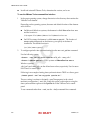
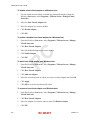
To add a new virtual network to the list, click Add. In the dialog box that appears, select the network you want to add from the drop‐down list, and click OK. (At this point, you cannot change any of the other settings in the DHCP Settings dialog box.) On the DHCP tab, click Apply to activate the new network. You can now select the newly added network and change the settings, as follows.
To change DHCP settings for a virtual network, select it in the list, and click Properties. In the DHCP Settings dialog box that appears, you can change the range of IP addresses provided by the VMware Server DHCP server on a particular virtual network. You can also change the duration of DHCP leases provided to clients on the virtual network. (If you want to change the subnet settings, you need to use the Host Virtual network Mapping tab.)
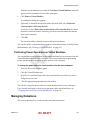
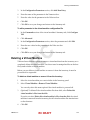
You can completely stop the DHCP service for all virtual networks by clicking Stop, and then clicking Apply. If the service is stopped, you can start it by clicking Start and then Apply.
(You can also modify DHCP settings by choosing Edit > Virtual Network Settings > Host Virtual Network Mapping, selecting a specific bridged adapter, then clicking the > button for that virtual network.)
NAT Tab
Options on the NAT tab let you determine which virtual network is using the virtual NAT device, stop and start the NAT service, and configure a variety of settings for the NAT device.
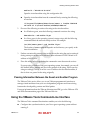
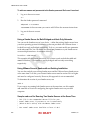
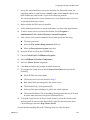
You can stop, restart, and start the virtual NAT device by clicking the appropriate button. The VMnet host setting lets you select which virtual network uses the NAT device. You can select Disable if you do not want to use NAT on any virtual network. You can change any of the following NAT settings when you click Edit:
VMware, Inc.
RC DRAFT
261