1
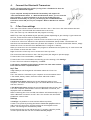
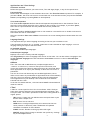
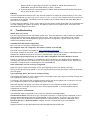
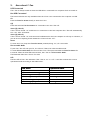
4. Connect the Bluetooth Transceiver NOTE: This paragraph only applies if using C-Pen 3.5 AND the PC does not have built-in Bluetooth support. If your computer already has Bluetooth functionality with support for “Microsoft Bluetooth Stack” or “WidComm Bluetooth Stack” you can omit this step. However, in case of problems or if you do not already have any Bluetooth functionality on your PC you shall plug the included Bluetooth transceiver into a USB port on your computer. Wait for Windows to load the drivers. 5. C-Pen Core settings The C-Pen Core software must be started to use the C-Pen. C-Pen Core is the main software that will connect to your C-Pen and send the scanned text to the cursor. The C-Pen Core tray icon indicates that the program is running. NOTE! Tray icons may be hidden by the operating system depending on your settings. If you cannot see the icon, check the icons that are hidden by Windows. To start the C-Pen Core program, click the C-Pen Core Starter icon on your desktop. A shortcut to C-Pen Core software is also placed in the Windows Startup folder. The software will therefore start automatically each time you start the computer. To remove the autostart feature, simply delete the C-Pen Core shortcut from Windows Start Program Startup. When you close the C-Pen Core Window the program is minimised to the system tray. It is still active and will continue to work with the C-Pen. Right click on the C-Pen tray icon to access the C-Pen tray menu. The connection status is shown in the C-Pen tray menu (see images on previous page). To launch the C-Pen Core Window, click Open. To launch the C-Pen Core Windows and directly go to the settings, click Settings. To exit C-Pen Core software completely, click Exit. A sub-menu is available in the left part of the C-Pen Core main window. Each sub-menu item is explained below. My C-Pen In My C-Pen you will find general information about the C-Pen Core software. The C-Pen must be connected to your computer to see information about C-Pen model, battery status, firmware version and serial number. Bluetooth Status Host Bluetooth Status displays the current Bluetooth status of your computer. The status must be OK to get a successful Bluetooth connection with the C-Pen 3.5. C-Pen Bluetooth Status displays the current Bluetooth status of the C-Pen 3.5. If the computer (host) and the C-Pen are Bluetooth connected, the displayed status is Connected. When connecting the C-Pen via USB, the software will automatically try to make a Bluetooth connection to the C-Pen. You can also click the button Connect to connect them. Settings In Settings it is possible to create and use different profiles. Create a new profile by clicking the button Create new profile and then add a name for this profile. Specific settings can be assigned to each profile. The settings are automatically saved. Each profile will get its own tab at the top. To activate a specific profile, click the profile tab and click the checkbox Use this profile. 2