1
Getting Started
Getting Started
In this chapter we describe how to install Origin on your hard drive, how to configure
Origin to include the DSC add-on routines, and how to start Origin. We recommend that
you read your Origin User’s Manual for a complete guide to all of Origin'
s features.
System Requirements
Origin version 5.0 requires the following minimum system configuration:
• Microsoft Windows® 95 or later, or Windows NT® version 4.0 or later.
• 486/DX or higher processor.
• 8 megabytes (MB) of RAM (16 MB recommended).
• One 3.5-inch high-density disk drive.
• 12 MB of available hard drive spaces.
Installing Origin
To install a new copy of Origin or to upgrade an existing copy, run the program
SETUP.EXE located on Disk 1, the Setup disk. The Setup program guides you through
the installation process. Installation requires 12 MB of free disk space on the drive where
you intend to install Origin. Additionally, installation requires 8 MB of free disk space on
the Windows drive (where your Windows operating system is installed) for temporary
files. Thus if you are installing Origin onto your Windows disk drive, 20 MB of free disk
space is required during installation (only 12 MB of free space is required after
installation is completed).
The Setup program prompts you to type in your Origin serial number. If you are
upgrading your version of Origin, your new serial number is located on the serial number
label affixed to the Origin package, or on the packing list. If you are a new Origin user,
your serial number is located on your registration card, or on the serial number label
affixed to the bottom of the Origin box.
To start the Setup program, perform the following:
(Please refer to the 'Origin : Getting Started Booklet' for further information)
(When choosing a Destination Directory (or folder) name to place Origin make sure this name or any other
name in the path does not include a space, otherwise Origin will not operate properly)
1.
2.
3.
4.
5.
6.
7.
Start Windows 95, Windows 98 or Windows NT® version 4.0 or later.
Close all Windows programs (if any are open).
Insert the Origin Setup disk in the available floppy drive A: (or B:).
Click Start, the select Run.
Type A:\Setup (or B:\Setup) in the Open text box.
Click OK. The dialog box closes and the Origin Setup program begins.
If you have a previous version of Origin you may want to install Origin 5.0 in a separate program
folder. Please change the program folder to be MicroCal Origin50 (from the default MicroCal Origin
name) when prompted. (see Origin'
s Getting Started Booklet for more information)
8. Follow the instructions presented by the Setup program to complete the installation.
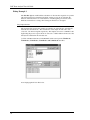
9. After disk 5 is completed make sure the '
X'is in the box to select the Custom disk installation (this disk
contains the DSC specific routines) and click Next.
3