1
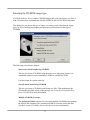
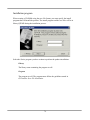
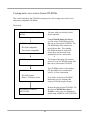
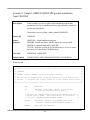
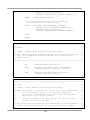
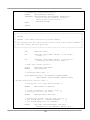
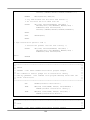
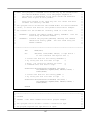
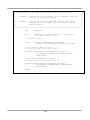
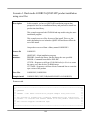
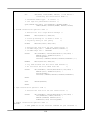
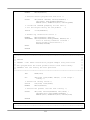
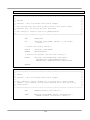
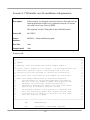
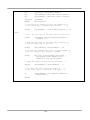
The program accepts one parameter as input, namely, the tape device to
which the CD-ROM image will be saved.
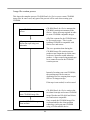
To create a CD-ROM image, the objects must go through a tape save
operation. This is required to prepare the objects so they can be successfully
restored via normal restore CL commands on the iSeries. In this scenario,
the SAVSAVFDTA command is used to save the application to tape.
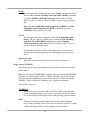
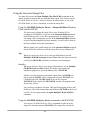
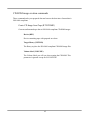
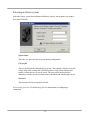
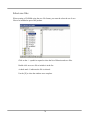
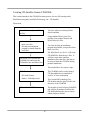
16) Select the iSeries tape device you want to use while creating the CD-ROM
image. Make sure there is a tape in the drive that can be initialized. The
premastering process will initialize the tape when you create the CD-ROM
image. Press Next.
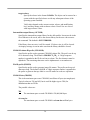
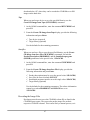
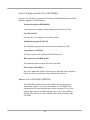
17) Enter the Windows directory (folder) where you want to put the resulting
CD-ROM image files. The image files placed in this directory can be
written to a CD-Recordable device. Press Next.
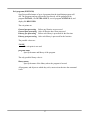
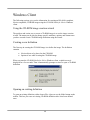
18) Press Next when prompted to enter the CD-ROM volume label. It is not
used in this scenario.
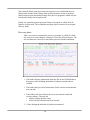
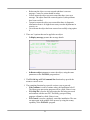
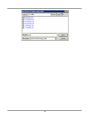
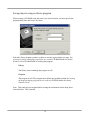
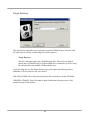
19) You are now ready to create the CD-ROM image files. The following things
will happen while creating the image files.
9 The server will prepare the tape and CD-ROM creation environment.
9 The program you specified will be called to do an iSeries save operation
to the tape device you specified.
9 The CD-ROM image files will be created from the save data and
transferred to the target directory you specified.
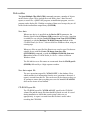
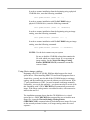
20) Press Create Image. This will create the native iSeries CD-ROM image
files. You will see status messages during this phase. This may take a while.
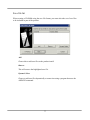
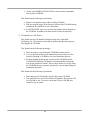
21) You will get a message saying that CD-ROM premastering is complete.
Press OK to close the message box. Press Cancel to close the create dialog.
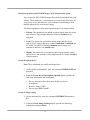
22) A child window now contains information about the CD-ROM image files
you created. Maximize the child window if it is not fully visible. You are
now ready to create a CD-ROM using a CD-Recordable device.
23) The tape in the drive also contains the CD-ROM image. This tape is suitable
to send to a CD-ROM duplication company that accepts iSeries tapes with
CD-ROM images. This can be used as an alternative method to using a
CD-Recordable device.
17