1
15.1.6
Windows Firewall Access
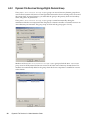
During the install, Dynamic File Services provides an option to enable an exception in the server
firewall for the configured Dynamic File Service port (default 8999). The firewall exception is enabled
by default. Disabling the firewall exception effectively disables the remote management capability
for the Dynamic File Service. You can also enable and disable the firewall exception after the install.
For information, see Section 6.9, “Configuring Firewall Access for the Service Port,” on page 122.
When the Windows Firewall Access option is enabled, DynamicFS automatically configures an
exception for the configured Dynamic File Service port (default 8999) in the Windows Firewall. By
default, the scope of the exception is set as Any computer (including on the Internet). You can modify
this manually by using the Windows Firewall dialog box. Other scope options can be found by going
to the Windows Firewall > Exceptions page, double-clicking the exception to edit it, then selecting
Change Scope. The alternative manual settings are My network (subnet) only and Custom list.
15.1.7
Dynamic File Services Group
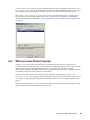
During the install, a new administrator user group called Dynamic File Services is created on
computers where you install Service component, or in Active Directory in a Domain. The user name
you use to log in to the server when you install the software is automatically assigned as a member of
the group. Other members can be added after the installation. Only members of the Dynamic File
Services group and the Administrator user account on the machine are allowed to manage
DynamicFS. In an Active Directory Domain, Domain Admins can also manage DynamicFS for the
server. For information, see Section 4.2, “Management Groups,” on page 52.
In a Workgroup, if you use Dynamic File Services in a Windows cluster, ensure that you assign the
same users in the Dynamic File Services group on each node so they can log in on whatever node
is active.
Logins to the Dynamic File Service are authenticated by using Kerberos in a Windows domain, or by
using NTLM (NT LAN Manager) if a Windows domain is not present.
15.1.8
Dynamic File Services Retention Review Group
During the install, a group called Dynamic File Services Retention Review is created on
computers where you install Service component, or in Active Directory in a Domain. Initially, there
are no members assigned to the group. Members of the Dynamic File Services Retention
Review group are allowed to perform reviews of data in the retention repository of all retention pairs.
For information, see Section 4.2, “Management Groups,” on page 52.
In a Workgroup, if you use Dynamic File Services in a Windows cluster, ensure that you assign the
same users in the Dynamic File Services Retention Review group on each node so they can log
in on whatever node is active.
Logins to the Dynamic File Service are authenticated by using Kerberos in a Windows domain, or by
using NTLM (NT LAN Manager) if a Windows domain is not present.
15.1.9
Reviewers for a Retention Pair
You can assign individual users and groups to be reviewers of a given retention pair. Use the
Reviewers tab on the pair’s Properties page. It is not necessary for the reviewers assigned to a pair to
also be members of the Dynamic File Services Retention Review group. The Dynamic File
Services Retention Review group is assigned to the Reviewers list by default when you create the
retention pair. You can remove the group from the list in order to restrict access to a few specific users
and groups.
Security Considerations
261