1
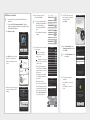
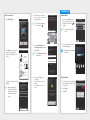
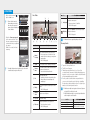
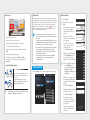
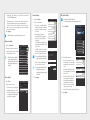
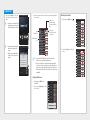
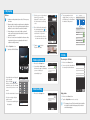
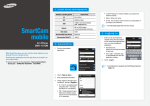
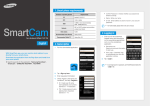
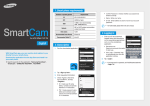
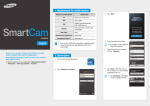
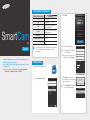
M You can only use it in a camera that has a Wi-Fi Direct sticker attached to it. M Select a camera that has the last four digits of the serial number on the back of the product. (Ex: smartcam_xxxx or DIRECTxxxx) Press the button, "Is this camera already in use?" when you register a camera being used in another account, in order to register it immediately without setting it. 7. Tap <Wireless Setup>. Back Registration . 10. After selecting a camera to connect, tap <Next>. Wi-Fi Direct connection Settings DIRECT-037N CHOOSE A NETWORK... Registration Next The camera LED color will change from blue to green within 2 minutes. Tap <Next> when it turns green. Apple Network 8dfdc7 design Enter 'smartcam' if a password is required. Is there a WiFi DIRECT sticker on the camera lens? 12. The LED of the camera will turn into green if a camera is connected to Wi-Fi. Tap <Next>. Wi-Fi Wi-Fi Cisco_WPS_57090 KT12580 CT W Other... DIR iFi E Ask to Join Networks If yes, select Wireless Setup. If not, select Wired Setup. 11. Select a wireless hub connected to your camera. Wired Setup Is this camera already in use? 8. Tap <Next> after connecting a camera according to the instructions displayed on the screen. Back Registration Next 1 Connect the power adapter. Camera will take about 2 minutes to bootup. 2 When the LED flashes in red, press the Wi-Fi button for 5 seconds. 3 The status LED will change to light yellow. Tap next. 9. When the next screen appears, move to mobile phone Wi-Fi settings. Back Registration Go to Settings on your iPhone and select WiFi. Select a camera that has the last four digits of the serial number displayed on the back of the product. M design : Without the password, you will not be connected to a wireless hub. Click <Show Password> to check your password. Registration Cancel Next Create a name for the camera and camera password fo security. Camera Name ex: Living Room Camera password KT12580 1-8 alpha numeric characters NETGEAR27 Confirm camera password Show Password REST REST Apple Network 8dfdc7 Cisco_WPS_57090 DCIN 5V : After entering the password, connect to a wireless hub. 13. Enter <Camera Name> and <Camera password> and then click <Next>. Registration Back Select the wireless network you want the camera to connect to. SS SSW - Other Wi-Fi Networks (not listed) : Enter the SSID name and password to connect to the network. If selected, it shows guide on SSID and networking procedures. - Network password : If you select a wireless hub with the password, then the pop up window will prompt you to enter the password. Click <Show Password> to check your password. If you don't want to save the camera password, don't set Save to on in the camera setting. . Wireless Setup Other Wi-Fi Networks (not listed) Cancel Registration Connect Enter the password for the hub. Network password Enter password Show Password 14. The camera registration is completed. Select <Yes> for a camera setting. Select <No> to view a live screen. Registration Camera registered successfully. Q W E R T Y U I O P The camera settings can be set to your preference. Continue with the camera setup? (If password is requested, enter 'smartcam'.) A S D F G H J K L Z X C V B N M No 123 When you return to smartcam app, it will list the available Wi-Fi networks for the camera to connect to. space Next Yes