1
RC-E User Manual
Rules)
Creating the First Rule; Patrolling During Daytime
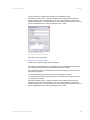
1.
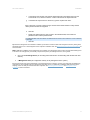
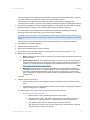
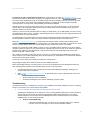
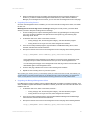
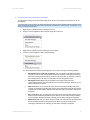
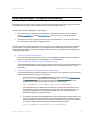
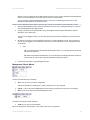
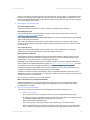
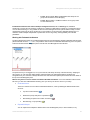
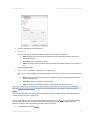
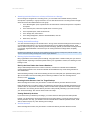
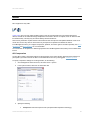
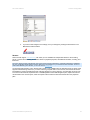
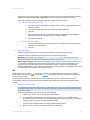
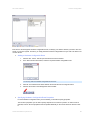
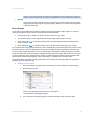
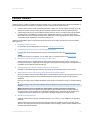
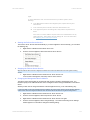
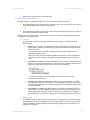
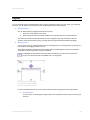
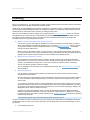
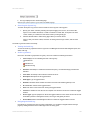
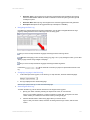
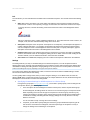
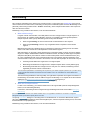
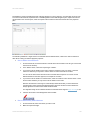
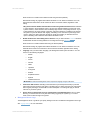
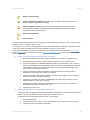
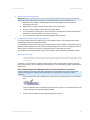
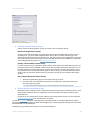
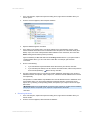
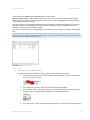
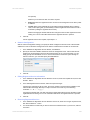
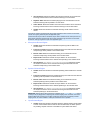
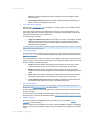
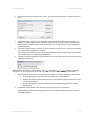
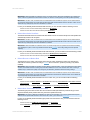
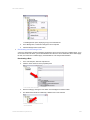
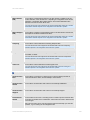
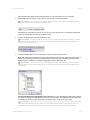
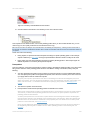
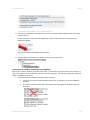
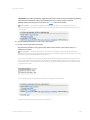
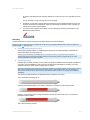
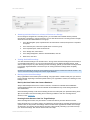
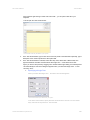
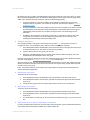
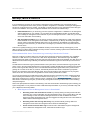
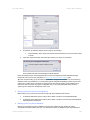
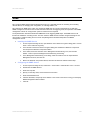
In the Management Client's Site Navigation pane, expand Rules and Alerts, then right-click Rules and select
Add Rule...:
Tip: Instead of right-clicking to select Add Rule, you can press CTRL+N on your keyboard.
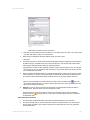
2.
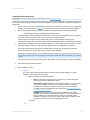
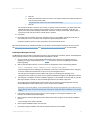
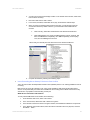
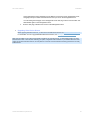
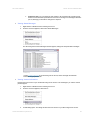
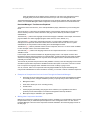
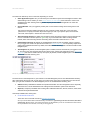
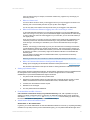
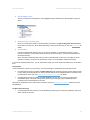
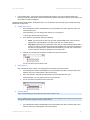
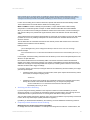
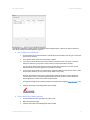
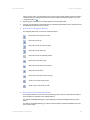
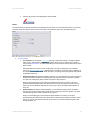
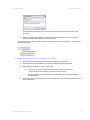
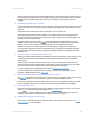
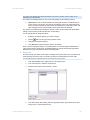
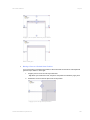
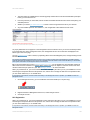
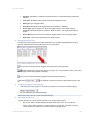
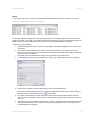
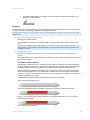
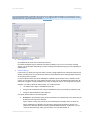
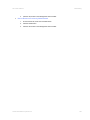
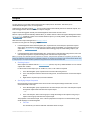
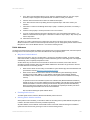
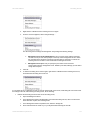
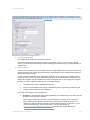
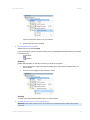
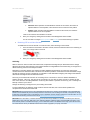
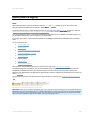
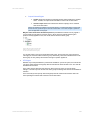
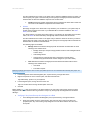
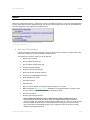
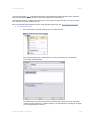
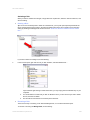
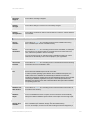
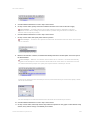
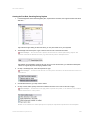
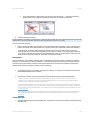
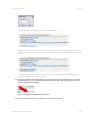
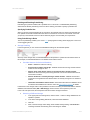
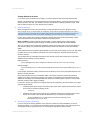
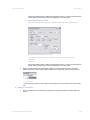
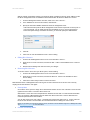
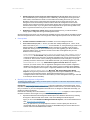
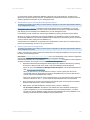
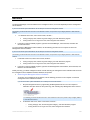
The Manage Rule wizard opens. Type a name for the new rule in the Rule name field.
In this example ... the rule will cover a specific camera and how it should patrol during daytime. We
therefore overwrite the default rule name (e.g. New Rule 001) with a descriptive name:
Tip: Always use a descriptive name for the rule. Once you have several rules, you will find that descriptive
names are a great help when identifying individual rules.
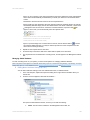
3.
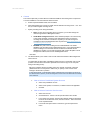
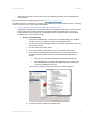
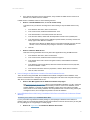
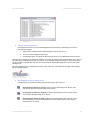
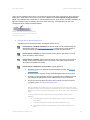
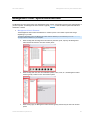
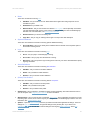
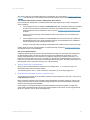
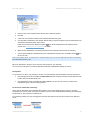
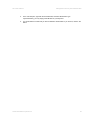
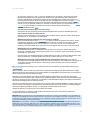
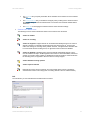
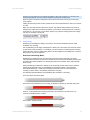
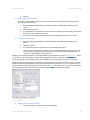
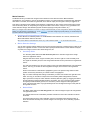
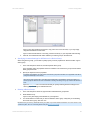
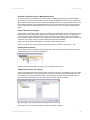
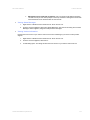
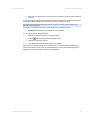
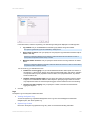
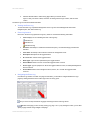
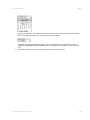
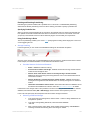
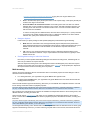
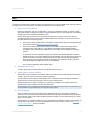
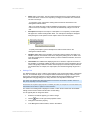
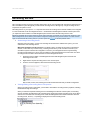
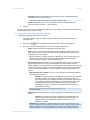
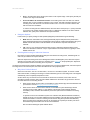
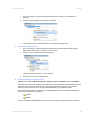
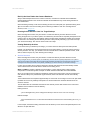
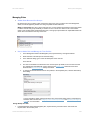
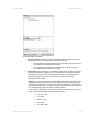
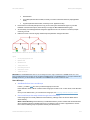
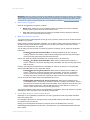
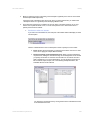
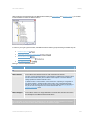
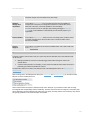
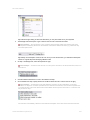
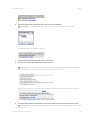
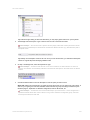
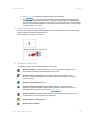
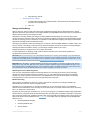
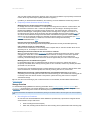
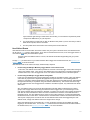
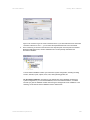
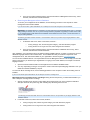
On Step 1 of Manage Rule, select the required rule type.
In this example ... we want to base the rule on a time period. Therefore, we select Perform an action in a
time interval:
4.
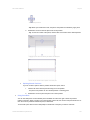
Click the Next button to go to step 2 of the wizard.
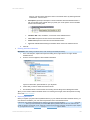
5.
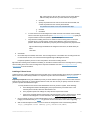
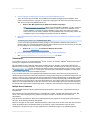
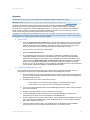
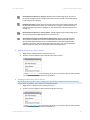
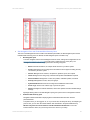
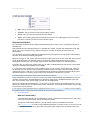
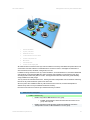
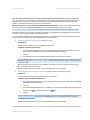
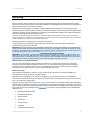
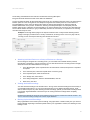
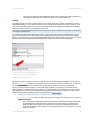
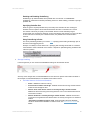
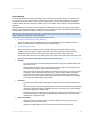
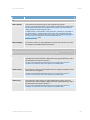
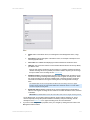
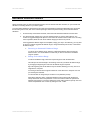
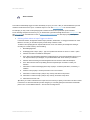
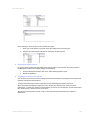
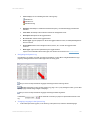
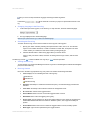
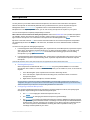
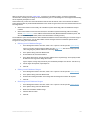
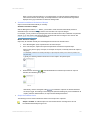
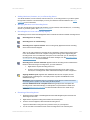
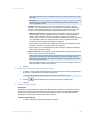
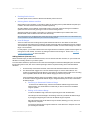
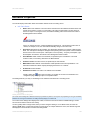
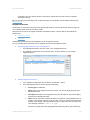
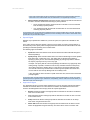
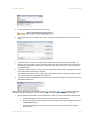
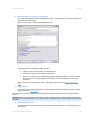
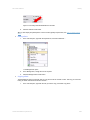
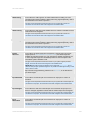
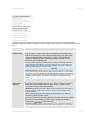
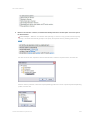
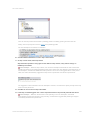
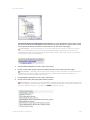
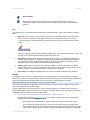
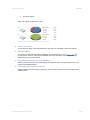
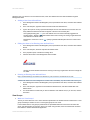
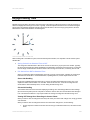
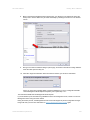
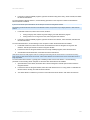
On step 2 of the wizard, specify which time conditions should be met in order for the rule to apply.
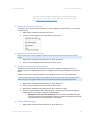
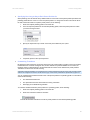
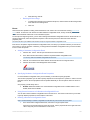
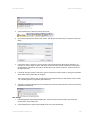
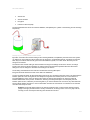
In this example ... we want the rule to apply within a specific time profile, so we select the time condition
Within selected time in <time profile>:
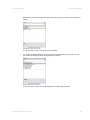
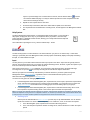
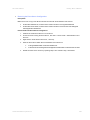
Based on our selection, the wizard prompts us to specify the required time profile in the rule description:
On-Net Surveillance Systems Inc.
256