1
ACTIVprimary2 User Guide
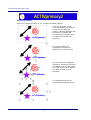
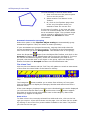
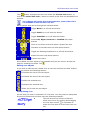
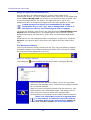
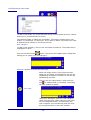
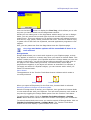
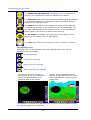
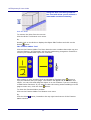
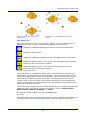
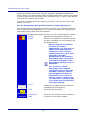
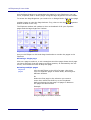
Rotate the Protractor
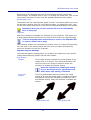
Position the ACTIVpen anywhere around the measurement scale towards the
edge of the Protractor. When the cursor changes to display the rotator arrows,
you can click and rotate the Protractor to a particular angle. This is required for
when the angle you want to measure or mark out is from a line that is not
horizontal. The center of rotation is at the center zero mark. Release the click
when the Protractor is at the desired angle.
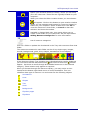
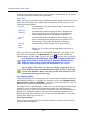
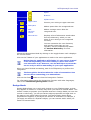
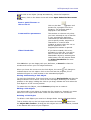
In Design Mode, you can choose to display the angle of rotation at the center
point of the Protractor. By default this is displayed. Right click on the
Protractor, and click on Show degrees to clear this option if you don't want
the angle of rotation to be displayed.
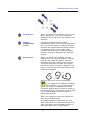
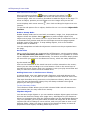
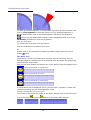
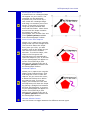
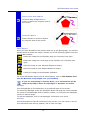
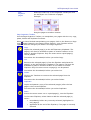
Draw a Segment
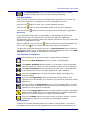
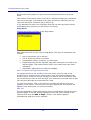
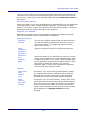
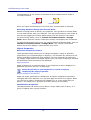
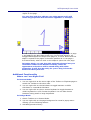
When the pen or highlighter Tool is selected, move the cursor so that it is near
the outside edge of the Protractor. The cursor will display an arc and pen. This
indicates that you can draw a segment. Click the ACTIVpen on the edge of the
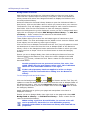
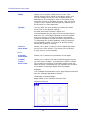
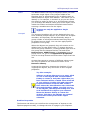
Protractor, at the angle you want to start from. Notice that ACTIVprimary will
automatically draw a line from the starting point to the center point. Drag the
cursor along the outside edge of the Protractor and release the click when the
segment is at the desired angle. ACTIVprimary will automatically draw a line
from the finish point and will fill in the segment with the currently selected pen
or highlighter color.
61