1
Preparations on the server
In order to set up the UserAdmin module, several preparations must first be made on the server.
You only need to carry out the following steps one time, even if you wish to set up several
rooms using the UserAdmin module.
•
First log on as an “Administrator“ for the Windows server.
•
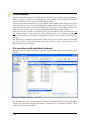
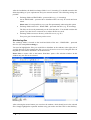
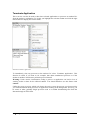
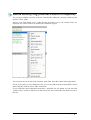
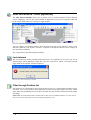
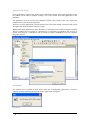
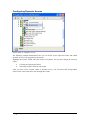
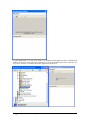
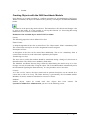
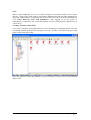
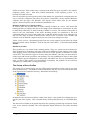
Then start the administration program “Active Directory Users and Computers“. You
can find this program under ”Programs Æ Administration“.
•
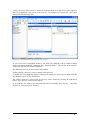
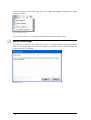
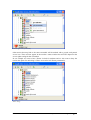
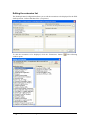
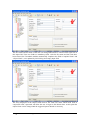
Create a new “Organizational unit” (OU) there via the menu item “Procedure Æ New”,
and name it “Lesson”.
•
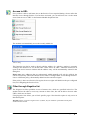
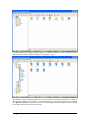
Open Windows Explorer and create a new folder called “INiS” on the data drive. In
general, this is the drive on which the greatest amount of free memory is available.
•
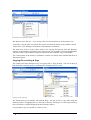
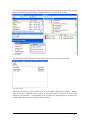
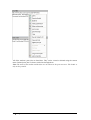
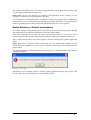
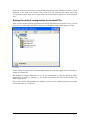
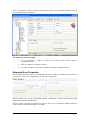
Right-click on the “INiS” folder, and then select “Sharing and Security”. Share the
folder with the name “INiS”.
•
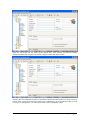
Click on the “Permissions” button. In the windows which follow, the group “Everyone”
and the fields ”Full access”, “Change”, and “Read” should be selected.
•
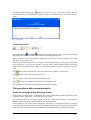
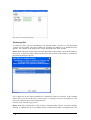
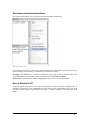
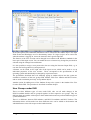
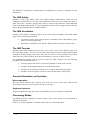
Change to the “Security” tab and remove all of the listed users except for the
“Administrator”. Give the administrator “Full Access” to this folder.
Setting up
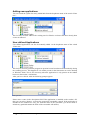
In every room in which you wish to use the UserAdmin module, it must first be set up in INiS.
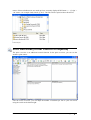
To do so, log onto your domain as Administrator on the teacher workstation, and start INiS.
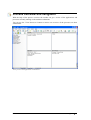
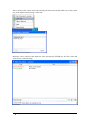
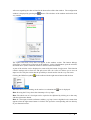
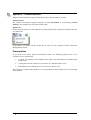
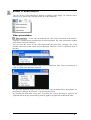
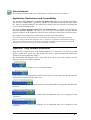
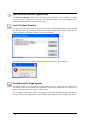
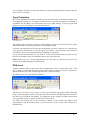
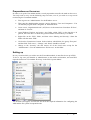
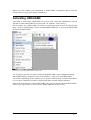
Open the menu item “UserAdmin Æ Set-up” in the INiS “System Menu”.
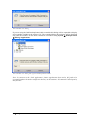
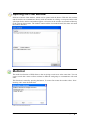
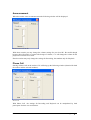
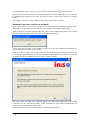
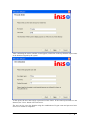
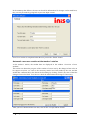
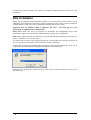
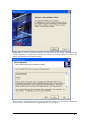
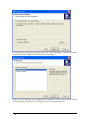
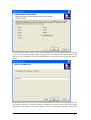
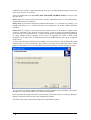
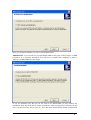
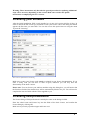
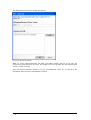
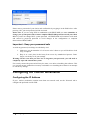
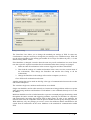
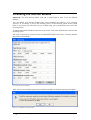
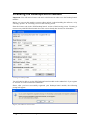
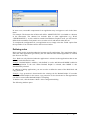
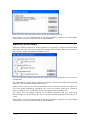
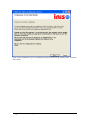
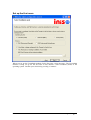
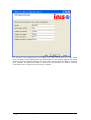
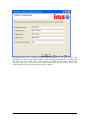
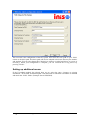
An Assistant will appear, and will ask for all of the required information for configuring the
ADS and the file system in sequential order.
Manual INiS 5
UserAdmin Modul configuration • 157