1
Email Services
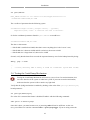
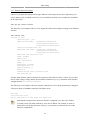
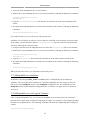
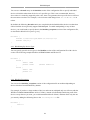
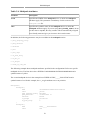
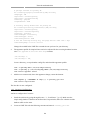
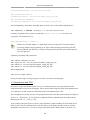
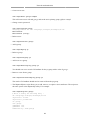
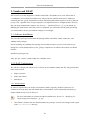
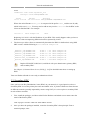
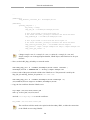
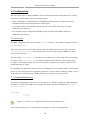
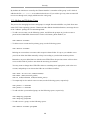
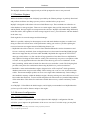
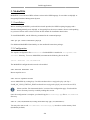
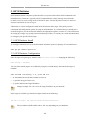
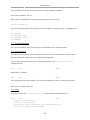
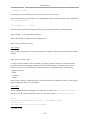
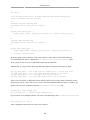
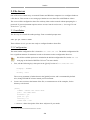
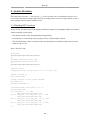
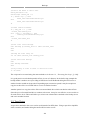
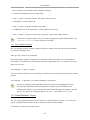
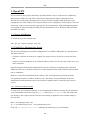
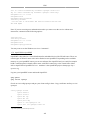
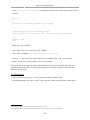
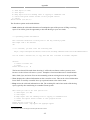
If you have enabled imap, or pop3, you can also try to log in with the commands telnet localhost
pop3 or telnet localhost imap2. If you see something like the following, the installation has been
successful:
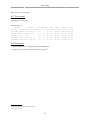
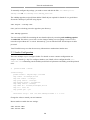
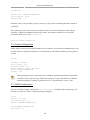
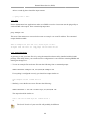
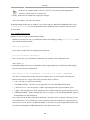
bhuvan@rainbow:~$ telnet localhost pop3
Trying 127.0.0.1...
Connected to localhost.localdomain.
Escape character is '^]'.
+OK Dovecot ready.
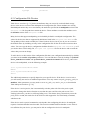
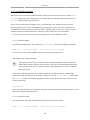
3.3. Dovecot SSL Configuration
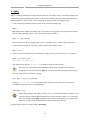
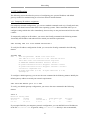
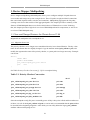
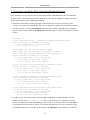
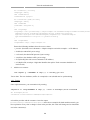
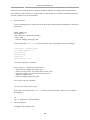
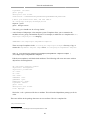
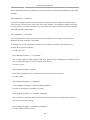
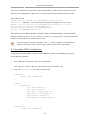
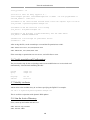
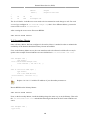
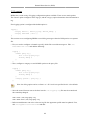
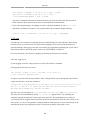
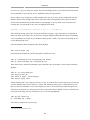
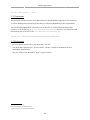
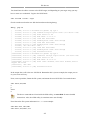
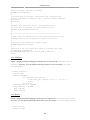
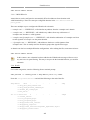
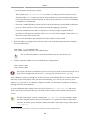
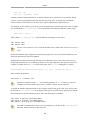
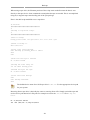
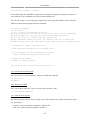
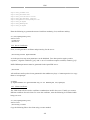
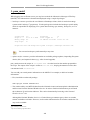
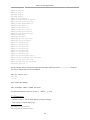
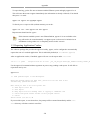
To configure dovecot to use SSL, you can edit the file /etc/dovecot/conf.d/10-ssl.conf and
amend following lines:
ssl = yes
ssl_cert = </etc/ssl/certs/dovecot.pem
ssl_key = </etc/ssl/private/dovecot.pem
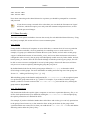
You can get the SSL certificate from a Certificate Issuing Authority or you can create self signed
SSL certificate. The latter is a good option for email, because SMTP clients rarely complain about
"self-signed certificates". Please refer to Section 5, “Certificates” [p. 175] for details about how
to create self signed SSL certificate. Once you create the certificate, you will have a key file and a
certificate file. Please copy them to the location pointed in the /etc/dovecot/conf.d/10-ssl.conf
configuration file.
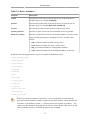
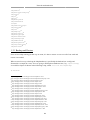
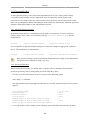
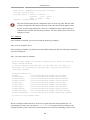
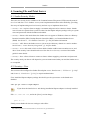
3.4. Firewall Configuration for an Email Server
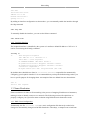
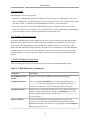
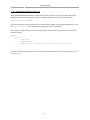
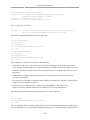
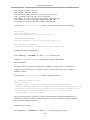
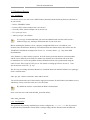
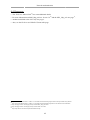
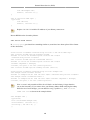
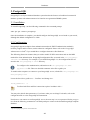
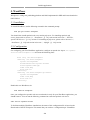
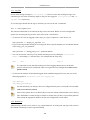
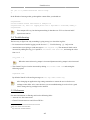
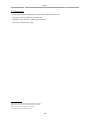
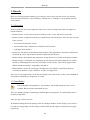
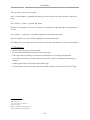
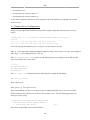
To access your mail server from another computer, you must configure your firewall to allow
connections to the server on the necessary ports.
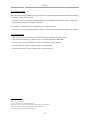
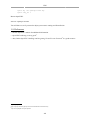
• IMAP - 143
• IMAPS - 993
• POP3 - 110
• POP3S - 995
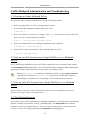
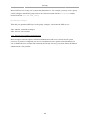
3.5. References
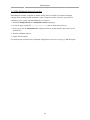
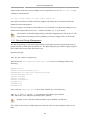
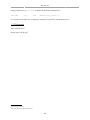
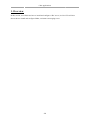
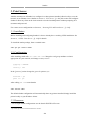
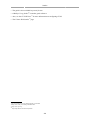
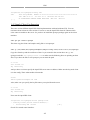
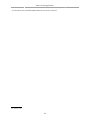
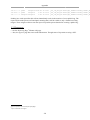
• See the Dovecot website14 for more information.
• Also, the Dovecot Ubuntu Wiki15 page has more details.
14 http://www.dovecot.org/
15 https://help.ubuntu.com/community/Dovecot
255