1
Basics - Meter Panel
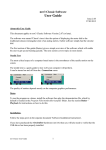
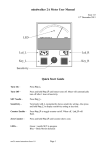
The meter panel comprises the following:
Baseline Position - top left, large digital readout.
Status - centre bottom (traditional) or centre left (circular), text describing the status or mode
currently active. Usually displays 'Demo Mode', 'Input OK', 'Recording' or 'Playback'.
Sensitivity Knob - bottom left, this control can be adjusted by dragging the knob with the mouse or
using the up & down arrow keys on the keyboard.
Clock - top right. Can be configured (View menu) as hidden, analog, digital 12hr or digital 24hr.
Baseline Drop (BD) Counter – bottom right, digital readout, appears faint until it is enabled by
clicking on it with the mouse, or the keyboard shortcut C. Repeating this action will toggle it
Off/On. Clicking on it and holding down the mouse button, or the keyboard shortcut Z, will zero
this counter.
The size of the panel on the screen can be adjusted by dragging the left or right window borders, or
full screen by the standard methods.
Basics - Alerts
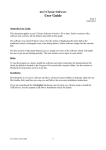
The dial incorporates a simulated LED – a round indicator that flashes on and whose colour
indicates the status of the needle. For those familiar with automatic analog meters, they have such
an LED to indicate a needle SET, and on the traditional dial it is located in the same position. On
the circular dial it is located in the centre.
Following are the default colours for the LED and their meaning:
Green – a needle SET has occurred.
Blue – Body Motion has been detected.
Red – a Real Time delay (needle lag) has been detected.
mw Classic User Guide
3