1
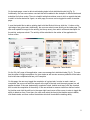
On the tasks page, a user is able to add existing tasks to their individual bucket list (Fig. 2). Additionally, the user can create a new task that will be added to the stockpile of different tasks and submitted for further review. There is a helpful tooltip that advises users to click on a particular task to add it to his/her bucket list. Again, on each page, the menu can be toggled to switch to another page. A user that would like to add an existing task to his/her Bucket List may click the ‘+’ button on the right edge of any given task. Additionally, the user can submit a new activity on the tasks page. The user must upload an image for the activity (via the up arrow), then add in a title and description for the activity, and press submit. The activity will be submitted to the author of the application for further review. Figure 2a: Tasks
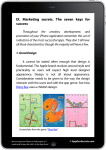
Figure 2b: Tasks Mobile On the “My List” page of the application, users can manage their individual tasks (Fig. 3). The user has the option to toggle completion of a given tasks as well as view summary statistics of the tasks that he/she has completed and has yet to complete. On this page, the user may toggle the completion of a given task. In order to mark a task as completed, the user must select the square at the right of the task, and the empty square box will appear checked. If the user inadvertently completes a task, he/she must tap or click the checked box to undo the completion of the activity. If the user wishes to remove a task from his/her bucket list, he/she must click the edit icon in the upper right hand corner of the screen in order to toggle the ability to delete an item. From there, the user must select the item(s) that he/she wants to delete, click delete tasks, and then confirm the deletion which will terminate the deleting ability. 2