1
Your computer's network settings
All computer operating systems, Windows, MacOS,
Linux, have DHCP as the default network setting.
Starting September 2011, this is also the default setting for
all types of Georgina Connects connections.
Window XP: Control Panel > Network Connections >
Local Area Network > (right click) Properties >
Internet Protocol TCP/IP > Properties
Windows Vista Home Premium: Control Panel >
Network and Sharing Centre >
Manage Network Connections > Local Area Network
> (select) Internet Protocol Version 4 (TCP/IPv4) >
Properties
Windows 7: Control Panel > Network and Sharing Centre
> Change Adapter Settings > (right click) Local Area
Connection > (select) Properties > Internet Protocol
Version 4 (TCP/IPv4) > Properties
MacOS: System Preferences > Network > (highlight)
Built-in-ethernet > Configure > TCP/IP > Configure Ipv4
> Using DHCP
Your router's network settings
All routers have the right setting – DHCP – as their
factory default setting. However, if it was at some
point changed to Static IP or something else, you
can change it back to default.
Connect to your Linksys router with a web browser:
http://192.168.1.1/
Username: admin password: admin
Change (if necessary) Internet Connection Type:
Automatic Configuration – DHCP
Connect to your Dlink router with a web browser:
http://192.168.0.1/
Username: admin
no password
Change (if necessary) Internet
Connection Type:
Dynamic IP ( DHCP)
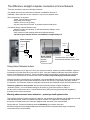
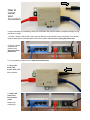
Above: Linksys Below: Dlink – interfaces vary from model to model
After changes: Save Settings
> power off / power on
Dlink
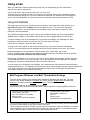
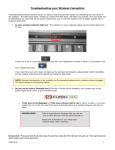
If you cannot access your router,
reset it to it's factory
settings by inserting and holding
a sharp object to its RESET hole
for 20 seconds while the router
is turned on.