1
Feature Manual - ECAP
ECAP Configuration
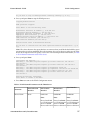
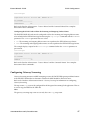
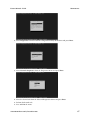
8. Save and Exit the menu.
Configuring NMS
ECAP servers generate SNMP traps to capture platform alarms. The MIBs required for platform traps
are pre-existing, the snmpAgent used for platform alarms is activated during ECAP installation, and
most of the hardware checks that would result in traps are defaulted to enabled. However, the Integrated
Accounting Feed application also requires enabling the following:
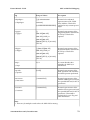
• Breaker Panel/Power System traps on servers 1A and 1B (applicable on T1100 servers only).
• Platform process traps if more or less than one instance of MeasServer, TimeServer, sentryd, or
Logd are found.
• Network ping traps if the Data Collection, File Transfer, Sync, RMM, or Maintenance Interfaces
(see ECAP Network Interfaces on the T1100 Server and ECAP Network Interfaces on the T1200 Server )
are down.
• IP Bonding traps if the File Transfer or Maintenance Interfaces (see ECAP Network Interfaces on the
T1100 Server and ECAP Network Interfaces on the T1200 Server ) are down.
• Disk capacity usage alarms if the ECAP storage volume usage exceeds 80% or 90% of total capacity.
These traps are enabled by configuring the NMS IP address for the location where the traps will be
destined.
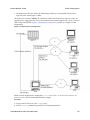
NMS configuration tasks involve configuring both the actual system used to monitor alarms and
configuring the ECAP server to send alarms to the NMS.
Configuring the NMS used to monitor alarms involves customer-specific tasks. At a minimum, these
parameters must be configured:
• Port Number -162 or as configured on the NMS server
• Community String - Public or any other designated string for the NMS server
Refer to the documentation for your system for information on configuring these parameters.
Use this procedure to configure the ECAP server to send alarms to the NMS.
Procedure
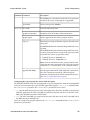
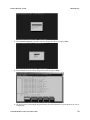
1. Log in to the ECAP server as the platcfg user .
2. Select Network Configuration from the Platform Configuration Utility Main Menu and press
Enter.
3. Select SNMP Configuration from the Network Configuration Menu and press Enter.
4. Select NMS Configuration from the SNMP Configuration Menu and press Enter.
5. Select Edit.
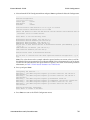
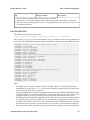
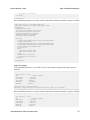
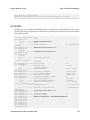
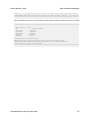
6. Select a task from the NMS Server Action menu.
You can add, edit, or delete an NMS Server.
Note:
910-5784-001 Revision B, December 2009
35