1
Pa300 Quick Guide v150 (English).book Page 12 Saturday, March 29, 2014 7:00 PM
Overview
12
Front Panel
Lyrics, Score
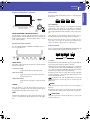
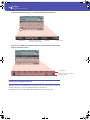
TEMPO +/– buttons
Use this button to access the Lyrics and Score pages.
TEMPO– decreases the speed of the Style or Song. TEMPO+
increases it.
LYRICS/SCORE
Press both buttons together to reset the Tempo to the value
memorized in the Style or Standard MIDI File. With MP3 files,
the original speed of the file is recalled (value reset to “0”).
When a Style is selected, this buttons recalls the Lyrics page, or
exits from it.
When a Song is selected, it cycles through the Lyrics and Score
pages. Press it a first time to see the Lyrics page, a second time to
see the Score page. Press it again to return to the main page.
TEMPO LOCK
This button turns the Tempo Lock function on or off.
On
When you select a different Style or Performance,
or select a different Song, the Tempo will not
change. You can still manually change it, by using
the TEMPO +/– buttons, or select the Tempo
value and change it by using the VALUE dial.
Off
When you select a different Style, or select a different Song, the memorized Tempo will be automatically selected.
Data Entry and Navigation
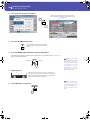
The VALUE DIAL can
be used to assign a different value to the
parameter selected in
the display, or to scroll
a list of files in the
Song Select, SongBook, Search and
Media pages.
VALUE DIAL
Turn the dial clockwise to increase the value of the selected
parameter. Turn it counter-clockwise to decrease its value.
When used while pressing the MENU button, this control always acts as a Display Brightness control.
Note: This button does not work with MP3 files.
You can jump to the Global > Lock page by keeping
SHIFT pressed and pressing this button.
METRO
Use this button to turn the Metronome click on or off. The metronome uses the same time signature as the latest selected Style
or Standard MIDI File.
EXIT
You can jump to the Global > General Controls > Basic
page by keeping SHIFT pressed, and pressing this button.
Use this button to perform various actions, leaving from the current status:
Split
•
•
Splitting the keyboard allows for separating the
chords area from the melody.
•
•
•
•
•
exit the edit menu page, without selecting any item
make the page menu disappear, without selecting any
item
return to the main page of the current operating mode
exit the Global or Media edit environment, and return to
the current page of the current operating mode
exit from the SongBook mode
exit from the Lyrics and Score pages
exit from a Style, Pad, Performance or Sound Select window
MENU
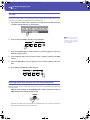
SPLIT
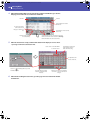
In Style Play, Song Play and Sequencer-Backing
Sequence mode, use this button to choose how the four Keyboard tracks are positioned on the keyboard, and how chords are
recognized by the arranger.
Note: The ACCOMP LED must be turned on for the accompaniment to play.
On
This button opens the edit menu page for the current operating
mode. After opening an edit menu, you can jump to one of the
edit sections by touching the corresponding button in the display.
By default, turning on the Split mode automatically selects the Lower chord scanning mode. In
this mode, chords are detected below the split
point. The number of notes you should play to
form a chord is defined by the “Chord Recognition” parameter.
Otherwise, press EXIT to return to the main page of the current
operating mode, or the current page of the underlying operating
mode.
Off
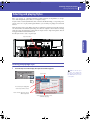
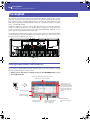
Tempo Section
The TEMPO and METRO buttons can be used to control the
Tempo.
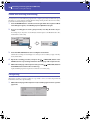
The Lower track plays below the split point, while
the Upper 1, Upper 2 and Upper 3 tracks play
above it. This is called the Split keyboard mode.
The Upper 1, Upper 2 and/or Upper 3 tracks play
over the whole keyboard range. The Lower track
does not play. This is also called the Full keyboard mode.
By default, turning off the Split mode automatically selects the Full chord scanning mode. In this
mode, chords are detected over the full keyboard