1
Apps List
Uninstall or Disable Apps
The Apps list shows all
preloaded apps and apps that
you downloaded. You can
uninstall, disable, or hide apps
from view.
You can uninstall or disable apps you download and
install.
•Preloaded apps cannot be uninstalled.
•Apps that are disabled are turned off and hidden
from view.
Shortcuts to apps can be placed on any of
the Home screens. For more information, see
Add a Shortcut to a Home Screen.
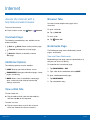
To uninstall or disable an app:
1. From a Home screen, tap
2. Tap EDIT. Apps that can be uninstalled or
disabled show Uninstall/disable on
their icon.
Access Applications
1. From a Home screen, tap
Apps.
Apps.
3. Tap
Uninstall/disable and follow the prompts
to either uninstall or disable the app.
2. Tap an application’s icon to launch it.
3. Press the Home key to return to the main
Home screen.
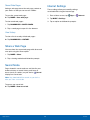
To enable apps after disabling them:
1. From a Home screen, tap
Apps > Settings
> Applications > Application manager.
Download and Install New Apps
2. Swipe to the DISABLED screen, which only
displays if you have disabled apps.
Find new apps to download and install on your
device.
3. Tap the app you want to enable, and tap
ENABLE. The app displays again in the Apps list.
•
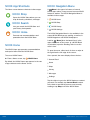
Play Store: Download new apps
from the Google Play store. Visit
play.google.com/store/apps to learn more.
For more information, see Disabled Services.
•
Galaxy Apps: View and download
Samsung apps that are optimized
for use with Galaxy devices. Visit
samsung.com/levant/apps/mobile/galaxyapps
to learn more.
Applications
49
Apps List