1
Operation Manual
1
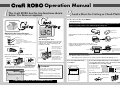
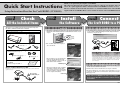
The Craft ROBO has the two functions shown
below. Use them as required.
2
Load a Sheet for Cutting or Check Plotting
Load a sheet in the Craft ROBO
Note before using
Do not load media without a protective liner, or perform a cutting operation when
there is no media loaded, as this will damage the cutting mat.
Press the standby switch, and confirm that the LED lamp lights.
LED lamp
Standby switch
Mounting the Cutter Plunger
While making sure that the sheet is straight, align it with the
guide line.
Confirm that you have the following items supplied with your
Craft ROBO.
Cutter plunger
Blade adjustment cap
Blue (0.1 mm) Thin film
Yellow (0.2 mm) Thick film, thin paper
Red (0.3 mm) Thick paper such as a postcard
Cutter blade
Referring to the figure shown below, mount a ballpoint pen in the Craft ROBO. When using a ballpoint pen, select “Pen” for “Media Type” in the
Craft ROBO Controller.
Attach a blade adjustment cap.
Loosen
Ball-point pen
plunger
Tighten
Referring to the figure shown below, firmly mount the cutter
plunger in the Craft ROBO.
Align with
the notch
OPEN : Unlock
CLOSE : Lock
OPEN
When using a ball-point
pen, be sure to use a
narrow one. In addition,
confirm that the tip of
the pen protrudes 3 to
3.5 mm from the ballpoint pen plunger. Please
refer to the Craft ROBO
User’s Manual (CDROM) for further details
on the ball-point pen
types that can be used.
Insert firmly into position
until this surface contacts
the plunger holder.
The most suitable blade adjustment cap is automatically displayed
when the Media Type is selected in the Craft ROBO Controller.
Media Type selected to be cut
The most suitable cap color
for the selected Media Type is
displayed
Turn the feed knob counterclockwise to feed the sheet.
Continue feeding the sheet until its top edge is aligned with the
cutting mat as shown below.
Caution:
Be particularly careful with the cutter blade when
changing the blade adjustment cap or attaching
the cutter plunger to the Craft ROBO.
NOTE:
Graphtec does not guarantee the cutting quality
when non-genuine Craft ROBO media is used.
Using non-standard media may void the warranty.
Cutting mat
Turn the feed knob until
the sheet reaches the
edge of the cutting
mat.
Feed knob
Setup is complete
Note: Turn the feed knob to remove the sheet.
When cutting has been completed, press the standby switch and confirm that the LED lamp goes out.
Notes on Loading Media in the
Craft ROBO
CLOSE
LOCK LEVER
Align the sheet with
the guide line
Mounting
the Ball-point Pen
Sheet Width: 210 mm up to
a maximum of 260 mm
Cutting Width:
190 mm
(max. 200 mm)
When loading
an A4-size
sheet, align it
with the guide
line.
To cut a sheet smaller than A4 size or a sheet without a
protective liner, affix it to the carrier sheet included with the
Craft ROBO before performing cutting.
To cut regular A4-size
media, peel off the
protective liner from both
edges of the carrier sheet
prior to use.
Peel off this part prior to use.
Protective liner
Adhesive
Paper backing
The standoff ring should be used when cutting a sheet that
has been affixed to the carrier sheet.
Standoff ring
Learn how to use it with the Media Trial Kit.
621249110