1
CrossOver Mac Pro from CodeWeavers
How to Run Windows Programs on a Mac
There are many options for running Windows programs on the Mac
because Apple now has the Intel processor. Boot Camp, for instance,
is included with OS X for installing Windows on a separate partition.
The software for running this is found in the Utilities folder of your Applications. With Boot Camp installed, you can startup your computer
in either the Mac OS or the Windows environment. The big problem
here is that you must reboot to switch operating systems. Parallels,
VMware and VirtualBox offer virtualization software that let you run
your Windows programs without logging out of OS X. The thing that
all of these options have in common though is that they legally require you to actually run Windows and therefore own a Windows license.
CrossOver however allows you to run Windows applications without
actually running Windows. With CrossOver installed on your Mac,
you can insert a Windows version installer disc, install the program,
and run it. CrossOver bridges directly between Windows software
and OS X, allowing applications to run at full speed on your Macintosh desktop. CrossOver has been tested for performance with many
common applications such as Microsoft Office, Adobe Photoshop and
Quicken. It also works well with a wide variety of other programs. You
can check for compatibility issues at < www.codeweavers.com/compatibility >. There are thousands of applications that work fine.
I would always opt for a Mac if given the choice, but some things you
want to do with your computer still require Windows. Now, thanks to
the Intel-based Mac, you can get a fast Windows environment without
leaving the comfort of your Mac OS X. Some of the top reasons for
needing to resort to Windows would be for games, interactive DVDs,
some Microsoft or Adobe applications and Quicken.
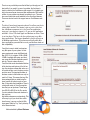
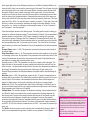
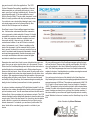
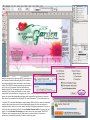
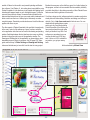
Installing a Windows program is as straight forward as it would be on
any Windows computer. CrossOver has a list of specific applications
that you can choose to help you install. If you want to install from a
single installer file or install one of CrossOver’s automatic packages,
select “Install Software…” from the Configure menu. Then select the
name of the package from the list provided. If the program you want
to install is not in the list, click “Install Unsupported Software…” and
follow the steps provided by the CrossOver Software Installer. If all
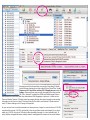
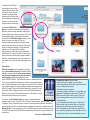
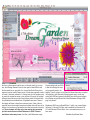
went well, a launcher icon appears for the application you just installed. This icon is in your home directory for later use. If your program did not create any icons, you can still launch it by selecting “Run
Command…” from the Programs menu. This will access your virtual C
drive which is located in Application Support/Crossover of your Library
file. Remember that unsupported software may work poorly or not at
all. In addition, installing unsupported software may prevent already
installed supported Windows applications from working.
It is generally recommended that unsupported applications be installed in a new bottle for testing purposes. The bottle idea was the
most confusing term used by CrossOver. A bottle is a virtual windows
environment. Each bottle contains a unique C drive and all its standard sub directories: Windows, Program Files, etc. A bottle also contains a complete Windows registry, a full set of most CrossOver
settings, and one or more Windows applications.
CrossOver allows you to maintain multiple bottles in one CrossOver
installation. This is like having several different Windows machines
operating together on your single Linux computer. This is useful anytime you want to install multiple applications yet prevent them from interacting or damaging one another. Most CrossOver users will be
happy using a single, default bottle. The CrossOver Software Installer
will automatically create the default bottle and any other bottles which
you may need during normal use. You can choose to install all new
software into an already existing bottle.