1
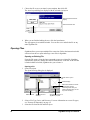
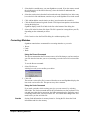
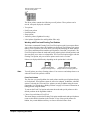
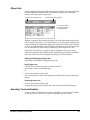
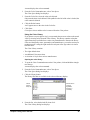
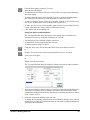
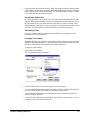
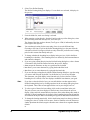
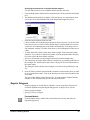
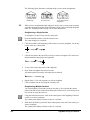
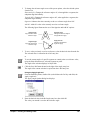
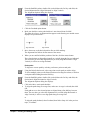
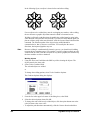
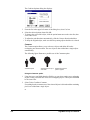
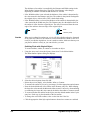
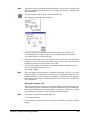
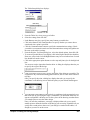
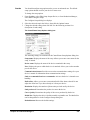
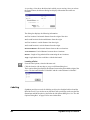
The Text Specifications dialog box displays.
3
Type the new text in the text entry box in the lower left portion of the dialog box. This
entry box does not show any changes you make to the text attributes. Most standard
text editing functions work in this entry box, including the ability to double-click a
word to select it.
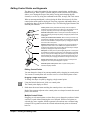
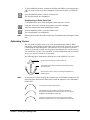
4 Select the desired text attributes:
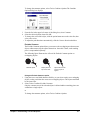
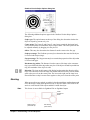
• To change the line spacing, click the Manual option button, then type a new value in
the entry box provided.
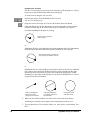
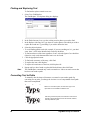
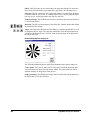
• To change the spacing between all characters in the new text block, enter a new value
in the Tracking entry box. A negative value makes the spacing tighter (smaller) and
a positive value makes it looser (larger).
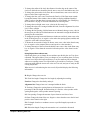
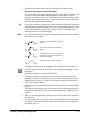
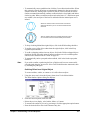
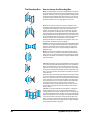
• To distort the text to make it longer or shorter, enter a new value in the Stretch entry
box. A negative value compacts the text and a positive value stretches it.
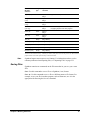
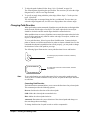
Note
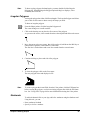
To make a text block a specific length or height, use the Resize command to specify
the size (e.g., 18” tall). See "Resizing Objects" on page 156 for more information.
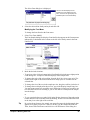
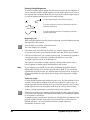
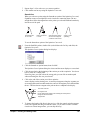
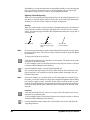
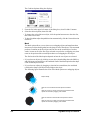
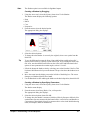
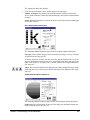
• To change the slant of the text from the default, enter a new value in the Slant entry
box. A negative value slants the text to the left and a positive value slants it to the
right.
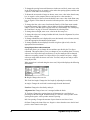
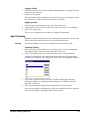
• To change the font, select a new font from the font list. If the Font menu extends
beyond the bottom of the window, choose Others to display additional installed
fonts.To select a font that doesn’t appear on the list, select Modify. See "Modifying
the Font Menu" on page 65 for more information on selecting fonts.
• To change the text height, enter a new value in the Size entry box.
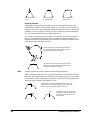
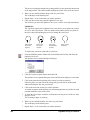
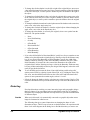
• To change how the text is arranged within the block, from the Alignment list, select
Left, Center, or Right.
• To change whether the text displays in a row (horizontal) or in a column (vertical),
select the appropriate Orientation button.
• To change whether the text displays from left to right or right to left, select the
appropriate Direction button.
5 Click OK when you are finished selecting text attributes.
New text is created with the attributes you selected.
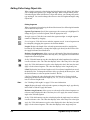
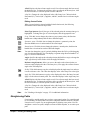
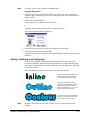
Editing Normal Text
Once you have created a block of text, you can add, delete, or change characters or
change any of its attributes. Even text imported from another program, such as
CorelDRAW! or Illustrator, is fully editable.
Chapter 5 Working with Text
53