1
Wind River Linux 3.0
•
•
•
•
•
•
•
•
This release is based on Linux 2.6.27.35.
During startup, the system presents a grub menu on
the VGA display and accepts input from the keyboard.
You can also access grub from serial port J15 if you
press a key on the terminal during startup. The port
settings are 38400, 8 bits, no parity, and 1 stop bit.
The kernel console is on ttyS0 (J15). You can change
the console to ttyS1 (J16) or tty1 (VGA display and
keyboard) from the grub menu.
You can login from tty1, ttyS0, ttyS1, or remotely using
ssh. The root password is “root”.
To start an X Window session, run “startx”.
To shut down, enter “poweroff” at a shell prompt. Wait
till D8 and D9 turn off before disconnecting power.
D10 turns off when the adapter is unplugged.
This release supports VGA, LCD, PS/2 keyboard and
mouse, PATA drive, Ethernet, USB 2.0, serial ports,
and RTC. It does not support audio and SDIO.
Features
Shutting Down the Development Kit
If the shutdown methods provided by the OS are not
available, press and hold SW2 for about seven seconds to
turn off the system. The same cautions about potential file
corruption from a reset apply to this type of shutdown.
Changing BIOS Settings
BIOS defaults have been selected to enable the
development kit to operate in a standard configuration.
Complete these steps to change the BIOS settings:
1. Remove the OS USB boot drive from the socket.
2. Reset the development kit.
Within a few seconds, the BIOS setup utility appears.
3. Change the applicable BIOS settings.
4. In the Exit tab, select Exit Saving Changes.
5. Reinsert the OS USB boot drive into the USB socket.
6. Reset the development kit.
Connecting to a Network
•
•
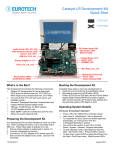
Power LEDs
The following LEDs indicate the status of system power:
Power is connected (D10)
Primary Supply (D9)
Normal Operating Power (D8)
Resetting the Development Kit
To reset, press SW1. Press only if there is a catastrophic
fault or hang of the OS. User data can be lost and the
boot media can be corrupted by an unexpected reset.
™
Network settings are configured to operate with a
DHCP network. To connect to your network, connect
your network cable to either Ethernet socket of J7.
CE beta R2 does not support Ethernet.
Troubleshooting
The following are tips for troubleshooting common
problems:
• Maintenance port J4 is not for application use.
• The maintenance port adapter cable does not follow
the EIA-232C standard. If you are directed to use this
port when working with Eurotech staff, use the black
DB9FF cable supplied in this kit.
See the support forums for additional tips.
Everyware Software Framework
Next Steps
The Catalyst EC is available with the Everyware Software
Framework (ESF). Information about ESF is available at:
For additional information about the Catalyst EC, download
the following documents from the support site or contact
your local sales representative.
http://esf.eurotech.com/
Technical Support
The Eurotech support site includes errata reports, the
latest releases of documents, and developer’s forums.
These resources are available to registered developers at:
Document
Catalyst EC User Manual
110123-4000
Catalyst Module Design-In Guide
110122-2003
http://support.eurotech-inc.com/Catalyst.asp
110123-4002B
March-2010