1
4.3.2
Arranging the plots
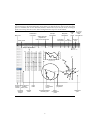
PuffinPlot allows the plots to be freely rearranged and resized within the display area; they
can also be switched on and off as required (see section 4.4). To arrange the plots, select Edit
layout from the Edit menu. This puts PuffinPlot temporarily into a special mode where plots
become moveable. A tick appears next to the menu item, and the plots are overlaid by pale
orange rectangles, allowing you to manipulate them. Each plot is also annotated with its name,
which helps to identify plots that are not currently displaying any data (e.g. the ‘PCA directions’
display if no PCA has been performed). To resize a plot, click and hold on an edge or corner of
its rectangle, then drag it to the desired size. To move a plot, click and hold in its central area
and drag it to the desired location. Plots may be overlapped freely. When you click in an area
where two or more plots overlap, the smallest plot is treated as the ‘topmost’, and this is the one
which will be moved or resized.
Once the plots are arranged to your satisfaction, click Edit layout on the Edit menu again to
untick the menu item and resume normal operation.
The plot layout is saved with your other preferences, and will be retained if PuffinPlot is
closed and restarted. You can restore the original layout using the Reset layout menu item.
Sometimes it can be useful to save and restore different plot layouts. This can be done using
the Export preferences. . . and Import preferences. . . menu items (see section 4.1.1).
4.4
The preferences window
The preferences window is divided into three tabs, with four action buttons at the bottom.
4.4.1
The action buttons
Clear
clears all changed preferences, resetting them to their default values.
Import
sets your preferences from a file saved using Export preferences. See the description
of Export preferences for details.
Export
saves your current preferences to a file. In conjunction with the Import preferences feature, this allows you to transfer your preferences from one computer to another. It also
allows you to keep multiple sets of preferences and switch between them as needed.
Probably the most useful application is to save different plot layouts for different sets
of data.
Close
closes the Preferences window.
4.4.2
The 2G import tab
This tab contains options connected with reading data from .DAT files produced by the 2G ‘Long
Core’ software.
Read magnetization from. This setting controls whether PuffinPlot reads a sample’s magnetic
moment from the fields giving the Cartesian components of the magnetization vector
(X/Y/Z) or whether it reads the polar represantation (the declination, inclination, and
intensity fields). The Cartesian components are stored to higher precision in the file, so
using them is preferable when possible. However, if the Cartesian components are used
when reading a long-core file, they must usually be corrected for the effective sensor
lengths (see below). If the sensor lengths are unknown, reading data from the polar
fields can be a useful fallback. When reading a file using the ‘X/Y/Z’ setting, PuffinPlot
first looks for the ‘X corr’, ‘Y corr’, and ‘Z corr’ fields to determine the magnetization
vector. If these are not present, it falls back to ‘X mean’/‘Y mean’/‘Z mean’, then to ‘X
intensity’/‘Y intensity’/‘Z intensity’.
21